
Ai Content Generator
Ai Picture
Tell Your Story

.webp&w=256&q=75) Roo clown
Roo clownHow to Import Emails from Outlook to Thunderbird?
Moving multiple large EML files from one application to another can be confusing, especially when you have different file formats. Many users prefer shifting their EML emails from Outlook to the Thunderbird application as firstly it is a free application, and secondly it has many more filters and advanced options in it for better management and conversion.
In this article, we will particularly learn about how to import emails from Outlook to Thunderbird using multiple methods. Let’s start this informative guide by knowing the basics of these applications and their uses.
Can I Import Emails from Outlook to Thunderbird Directly?
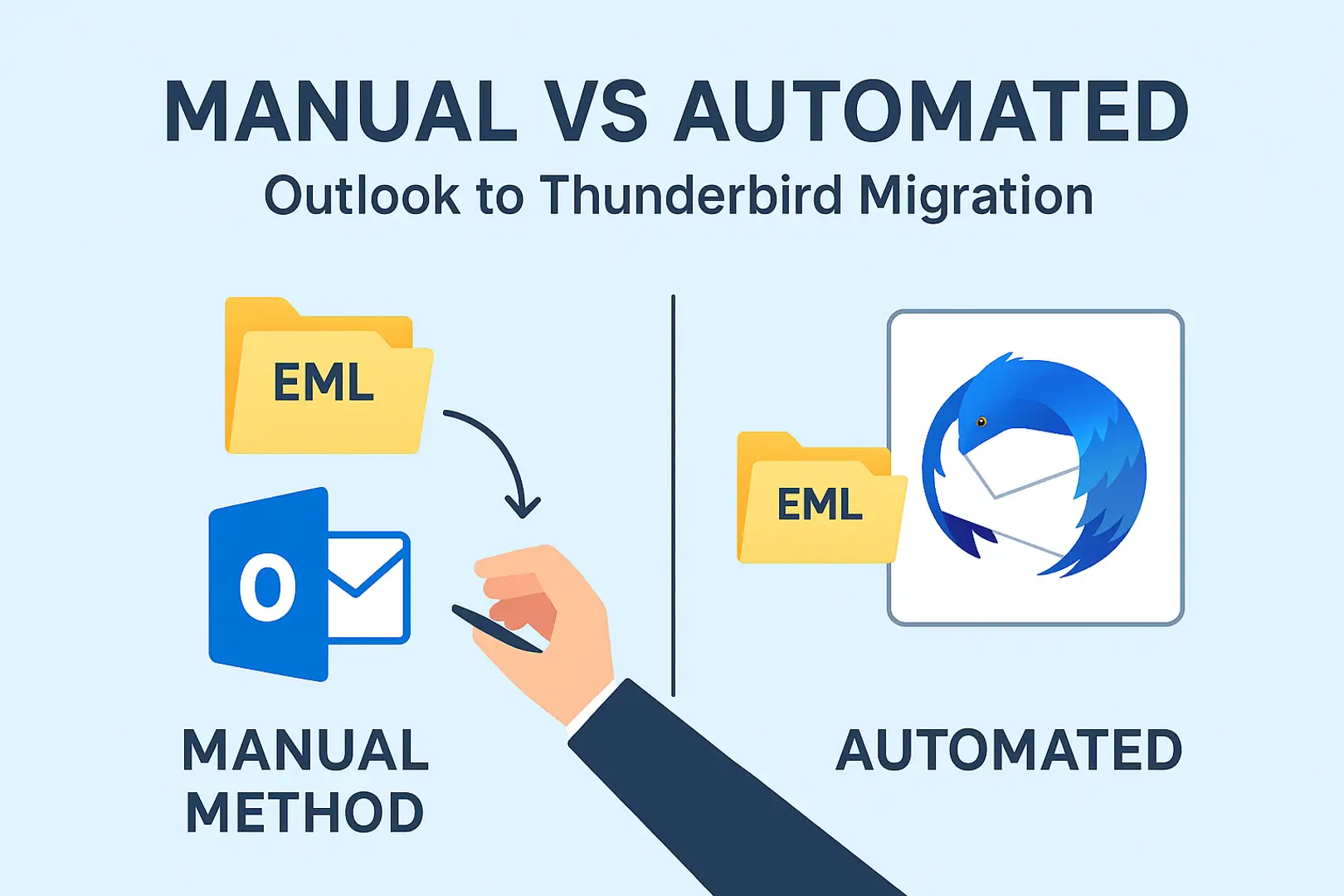
You can transfer emails from Outlook to Thunderbird using Outlook and Thunderbird email clients via drag & drop or add-ons, or if you want to move EML emails directly in bulk, you can use the automated EML converter tool. Manual ways are time-consuming and are not meant for bulk import; on the other hand, the expert tool can handle thousands of EMLs altogether without data corruption. Let’s discuss both methods briefly in the blog further.
Why Do Users Need to Import Emails from Outlook to Thunderbird?
- Users majorly shift from Outlook to Thunderbird to reduce the subscription costs, as Outlook is a paid application, whereas Thunderbird is completely free.
- Thunderbird offers much better flexibility and multiple advanced options and add-ons. It supports multiple email formats, add-ons, themes, settings, etc.
- Outlook sometimes becomes unresponsive and slow while importing or managing.
- Thunderbird can open, read, and import emails from Outlook to Thunderbird as Outlook exports individual EML emails, which makes it a natural destination for moving the files.
Prerequisites Before Importing via Manual Methods
- You should have Outlook installed with its subscription.
- Prepare all EML files into a single folder.
- Ensure all the EMLs are virus-free and not damaged or corrupted.
- You should have access to your default Thunderbird profile.
- Keep a backup of your EML files.
Transfer emails from Outlook to Thunderbird manually
You can import emails from Outlook to Thunderbird manually by the drag & drop method or Thunderbird’s ImportExportTools NG add-on. Let’s discuss both ways below.
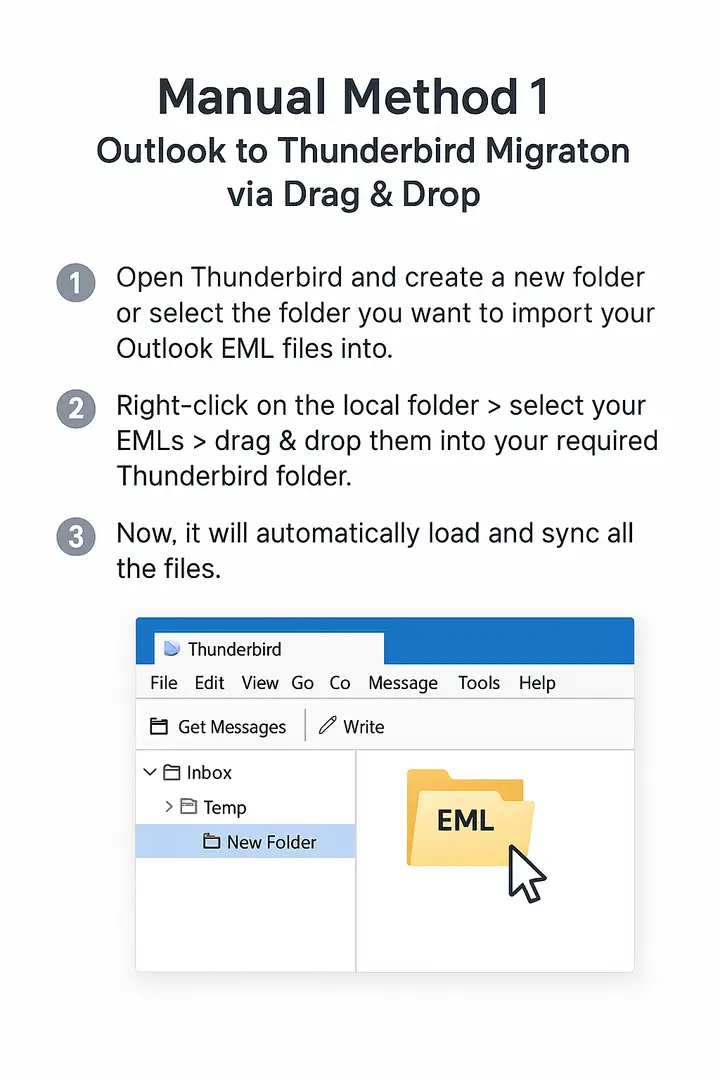
Manual Method 1: Outlook to Thunderbird Migration via Drag & Drop way
 Manual Method 2: Import Emails from Outlook to Thunderbird Using Add-ons
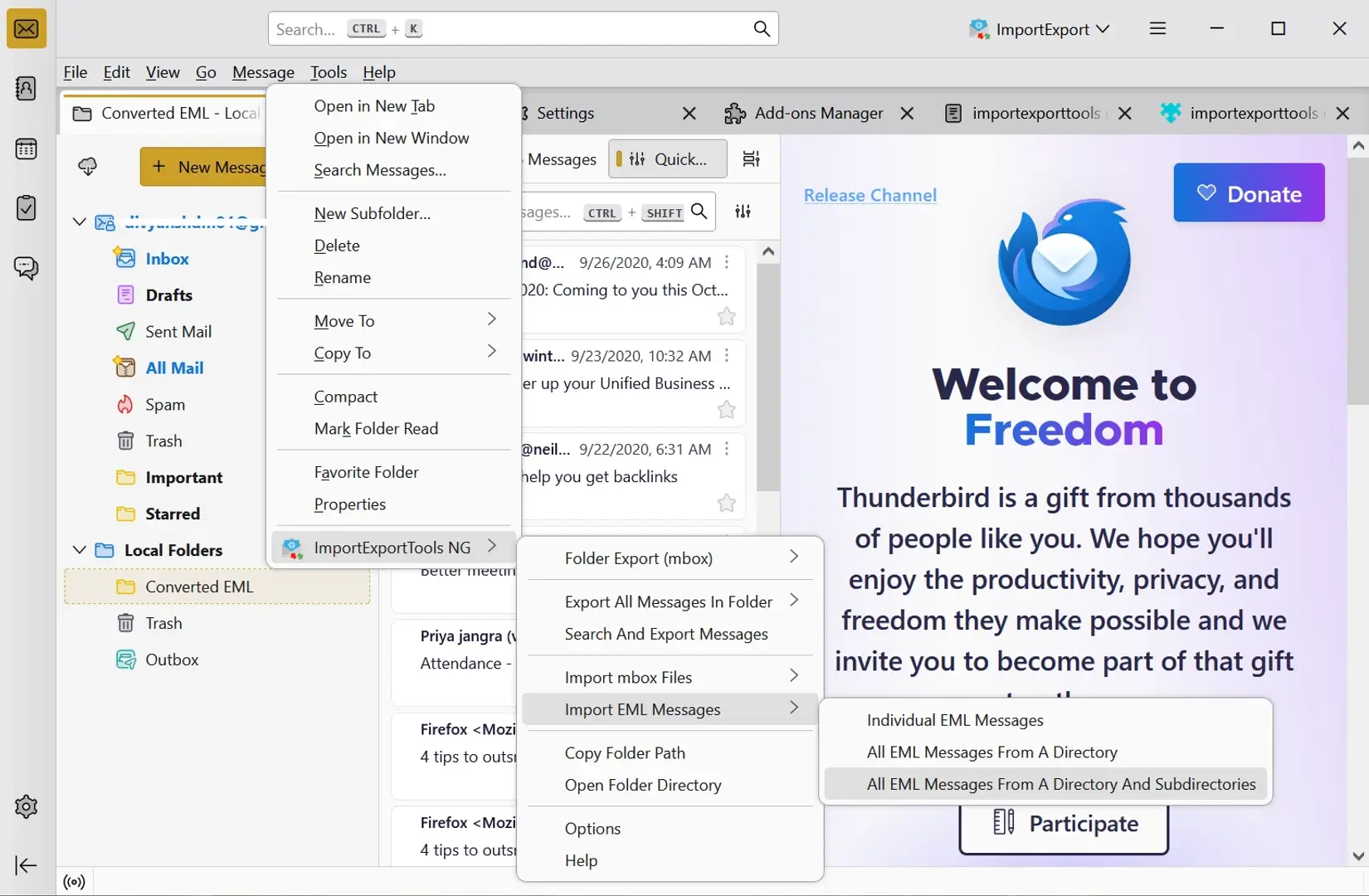
- Go tot Thunderbird application > tools > add-ons & themes.
- Then search for ImportExportTools NG add-on > install it.
- Now, restart Thunderbird and right-click on the folder you want your Outlook EML files to be imported.
- Click on ImportExportTools NG > import EML files > all messages from directory and subdirectories.
- Now, it will sync all the data automatically in bulk.
- Note: It copies emails from Outlook to Thunderbird in bulk, but it does not guarantee to import with the original hierarchy with complete data security.
Drawbacks of Manual Outlook to Thunderbird Migration
- The manual ways cannot import emails from Outlook to Thunderbird in bulk while keeping the original hierarchy and formatting intact. It can’t handle thousands of EML emails altogether.
- The original folder hierarchy is not preserved. The original data structure gets disturbed while importing in bulk.
- It does not guarantee complete data security & integrity.
- Large attachments, fonts, links, images, metadata, properties, etc, are not preserved.
- High chances of data corruption or permanent data loss when dragging & dropping large Outlook EML files.
- It requires basic technical knowledge, as wrong steps may result in data loss or huge errors.
Best Alternative Solution to Import Emails from Outlook to Thunderbird
The direct solution to overcome all the limitations of the manual method is to use the expert 4n6 EML converter, which will transfer emails from Outlook to Thunderbird. You can easily and effectively copy emails from Outlook to Thunderbird in bulk without data loss, corruption, or maintaining the original formatting. The free demo version of the tool is also available. Let’s see the easy working steps of this software and its compelling features.
How to use the Automated EML Converter Software? Working Steps
- Install the tool and click on Open.
- Select “choose folders” or “choose files” to upload your data files.
- Then, it will display all the files and folders on the left panel and show all the data in different modes.
- Now, you can hit the export button > Thunderbird > choose desired export options > save.
- Optional Step: You can also extract particular properties like phone numbers, attachments, email addresses, etc.

Core Features
- This expert utility can handle multiple large Outlook EML files and transfer them into the Thunderbird email client in bulk. Without having any limitations or size restrictions, you can directly import emails from Outlook to Thunderbird.
- It has an easy-to-use interface for non-technical and non-trained users. You can easily transfer using this tool without any technical knowledge.
- This tool comes with 100% data security and integrity. It is a desktop-based software and runs offline, which keeps the data files safe & secure.
- It preserves and maintains the original hierarchy and data structure of the files. The exact formation and formatting are kept intact while converting in bulk.
- This software automatically syncs the entire data and displays it. All the sub-folders or files present in the folder are shown exactly in the original format.
Final Thoughts
We can conclude the article by saying that if you are an individual looking to import emails from Outlook to Thunderbird in small batches, then you can use the manual method. Otherwise you can opt for the automated tool if you got large crucial EMLs to move.
Related Posts
© 2025 Invastor. All Rights Reserved
User Comments