
Ai Content Generator
Ai Picture
Tell Your Story

 Ethan dante
How To Create a Free Website Using Google Business Profile (Step-by-Step Guide)
In today’s digital world, every business—small or large—needs an online presence. A website helps customers learn more about your products, find your location, and contact you easily. But creating a website can seem expensive or technical for small business owners.
That’s where Google Business Profile (formerly known as Google My Business) comes in. It not only helps your business appear in Google Search and Google Maps, but it also allows you to create a free website in just a few minutes.
This guide will explain what Google Business Profile is, why it’s useful, and how you can create your free website step by step without any technical knowledge. By the end of this blog, you’ll have your own live business website ready to attract customers online.
What Is Google Business Profile?
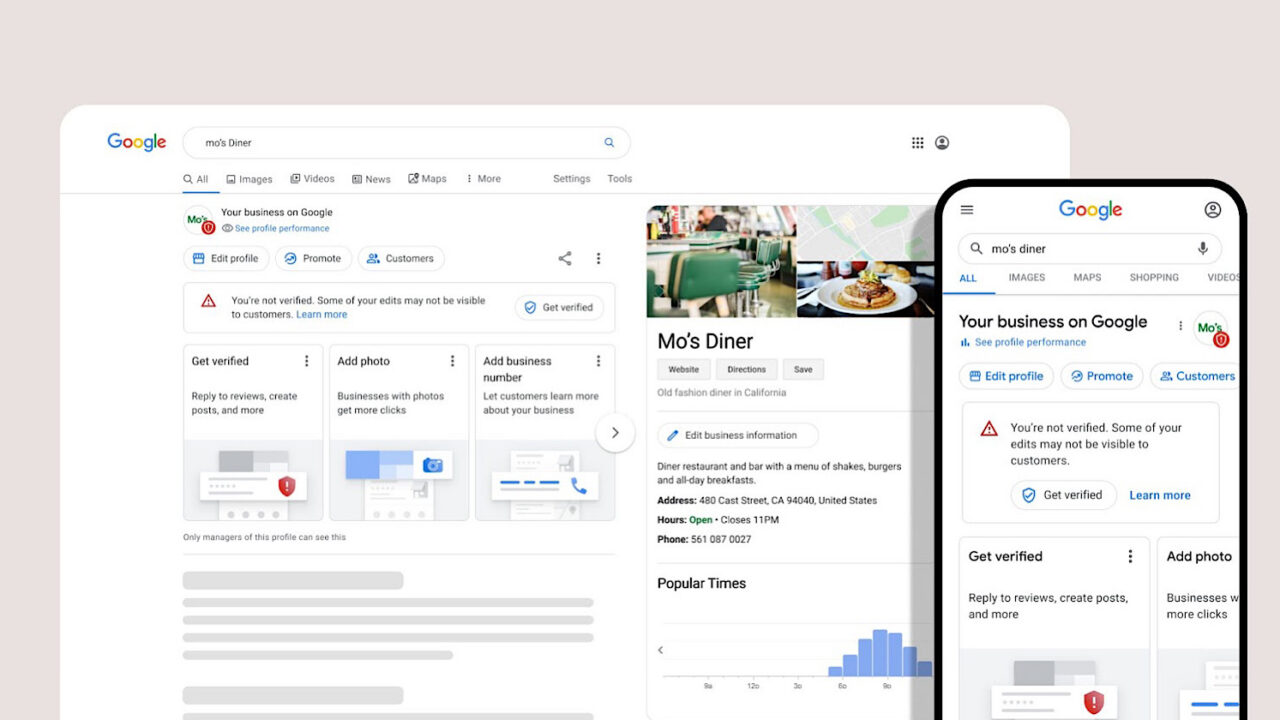
Google Business Profile (GBP) is a free tool offered by Google that helps business owners manage how their business appears on Google Search and Google Maps.
When people search for a product or service near them, such as “coffee shops near me” or “plumbers in Delhi,” Google shows local results using information from verified business profiles.
Your profile can include your:
- Business name
- Address
- Phone number
- Working hours
- Photos
- Reviews
Once you set up your profile, Google automatically gives you the option to create a free business website using the same information from your profile. It’s fast, easy, and completely free.
Why Use Google Business Profile to Create a Free Website?
Many small businesses skip having a website because they think it’s costly or complicated. But with Google Business Profile, that’s no longer a problem. Let’s look at why this is a smart choice.
Free and Easy to Set Up
The Google Business website feature is completely free. You don’t need to pay for hosting or design. Everything is managed through your Google Business dashboard.
The setup process is extremely simple. Even if you don’t know coding or website design, you can have a professional-looking site within minutes.
Integrated with Google Search & Maps
The biggest advantage of using Google Business Profile is that your website is automatically connected with your Search and Maps listing.
Whenever you update your profile—like changing business hours or adding new photos—your website gets updated too. This keeps your information consistent across Google’s platforms and helps customers find accurate details.
Mobile-Friendly and SEO-Ready
Your Google Business website is mobile-friendly by default, which means it looks great on all devices—phones, tablets, and computers.
Since it’s built by Google, the website is also optimized for search engines (SEO). This increases your chances of appearing higher in Google results when people search for your type of business.
Customization Options
Even though it’s free, Google lets you customize your website easily. You can:
- Choose from different themes and colors
- Add your logo and cover photo
- Write an attractive business description
- Highlight special offers or services
This allows you to make your free website look unique and professional.
Step-by-Step Guide to Create a Free Website Using Google Business Profile
Now, let’s go through the step-by-step process to create your free website using Google Business Profile.
Step 1 – Sign In to Google Business Profile
- Go to https://www.google.com/business/
- Click on “Manage Now.”
- Sign in using your Google account (Gmail).
- If you already have a Google Business Profile, select it. If not, click on “Add your business to Google.”
This is the starting point of your free website journey.
Step 2 – Complete Your Business Information
Once you’ve signed in, it’s time to enter your business details.
You’ll need to add:
- Business Name: Enter the name exactly as it appears in your signage or documents.
- Address: Include your full business address to help customers find you on Maps.
- Phone Number: Add a valid contact number.
- Category: Choose the most relevant business type (for example, “Bakery,” “Salon,” or “Electrician”).
- Working Hours: Mention your opening and closing hours.
- Photos: Upload clear, attractive pictures of your store, products, or services.
All this information will appear on both your profile and your new website.
Step 3 – Verify Your Business
Before your profile becomes visible publicly, Google will ask you to verify your business.
Verification methods include:
- Postcard by mail: Google sends a postcard with a verification code to your address.
- Phone: Some businesses can verify instantly via call or SMS.
- Email: In a few cases, verification can be done by email.
Once verified, you can access all features, including your free website option.
Step 4 – Go to the Website Section
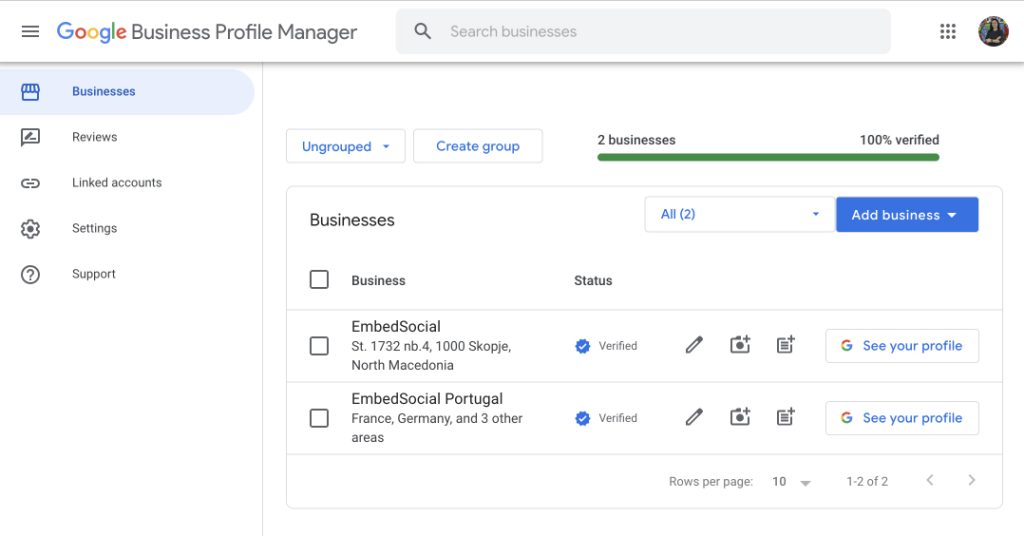
After verification, go to your Google Business Profile dashboard. On the left menu, click on “Website.”
Here, Google automatically generates a website for you using the information from your profile—like your name, address, phone number, and photos.
This means your website is almost ready even before you start editing it.
Step 5 – Customize Your Website
Customization is where you can make your website stand out.
You can:
- Change themes and colors: Choose from Google’s selection of layouts and designs.
- Add a headline: Write a catchy line that tells visitors what your business does.
- Write a business description: Use simple language to describe your products or services.
- Add photos: Include pictures of your location, staff, or products to make it more engaging.
- Include call-to-action buttons: Such as “Call Now,” “Get Directions,” or “Message Us.”
Google provides a live preview so you can see how your website looks before publishing.
Step 6 – Publish Your Free Website
Once you are satisfied with how your website looks:
- Click the “Publish” button.
- Google will give you a free URL ending with .business.site (for example, yourshop.business.site).
You can share this link with your customers, on social media, or even print it on business cards.
Congratulations! Your website is now live and visible to anyone searching for your business online.
How to Edit and Manage Your Google Business Website
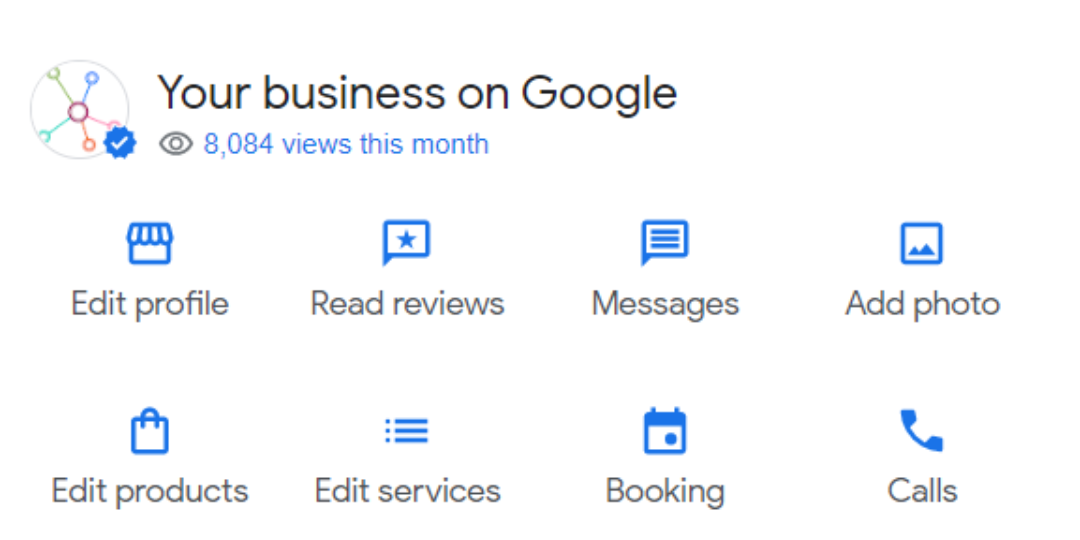
Your website isn’t static—you can edit or update it anytime directly from your Google Business Profile dashboard.
Here’s what you can do:
- Edit business info: Update your contact details, hours, or services easily.
- Add posts: Post updates, special offers, or new products regularly.
- Upload new photos: Keep your site fresh and engaging.
- View insights: Track how many visitors viewed or clicked on your site through Google’s analytics tools.
All changes you make are automatically applied to both your website and your Google listing.
Tips to Optimize Your Google Business Website for Better Results
Creating a website is the first step; optimizing it ensures people can find it easily and take action. Here are some practical tips.
Use Keywords Naturally
Think about what your customers might search for online. For example, if you run a bakery, keywords could be “best bakery in Mumbai” or “birthday cakes near me.”
Include these keywords naturally in your business description and updates. This helps Google show your website for the right search terms.
Keep Information Updated
Make sure your contact number, working hours, and services are always correct. Outdated information can confuse customers and reduce your credibility.
Add High-Quality Images
People trust visuals. Use clear, bright, and professional images of your business, products, or team. Avoid blurry or low-quality photos.
Regularly updating images keeps your profile fresh and helps attract more visitors.
Collect and Display Reviews
Ask your happy customers to leave Google Reviews. Positive reviews not only build trust but also improve your search ranking.
Respond to reviews politely—both positive and negative—to show that you value customer feedback.
Pros and Cons of Google Business Profile Website
Before you rely entirely on your Google website, it’s good to understand its strengths and limitations.
Pros
- Completely Free – No hosting or domain costs.
- Quick Setup – You can go live in minutes without any technical help.
- Google Integration – Automatically connects with Search and Maps.
- Mobile-Friendly – Works perfectly on all devices.
- Simple Management – Easy to edit, even from your phone.
This makes it ideal for local businesses, freelancers, and service providers.
Cons
- Limited Customization – You can’t fully design the layout or add complex features.
- Subdomain Only – Your URL ends with .business.site instead of your own domain.
- Basic Functionality – No advanced features like blogs, online payments, or shopping carts.
- Not Suitable for Large Businesses – Bigger companies often need more control and branding flexibility.
When to Upgrade to a Custom Website
While a Google Business website is perfect for small businesses starting out, you may want to upgrade later.
Here’s when it makes sense:
- You want a custom domain (like www.yourbrand.com).
- You need advanced features like e-commerce, blogs, or booking systems.
- You want unique branding and full design control.
- You’re expanding beyond local customers.
Platforms like WordPress, Wix, or Squarespace allow you to migrate easily when you’re ready for more.
Final Thoughts
Creating a website doesn’t have to be difficult or expensive. With Google Business Profile, anyone can build a free, professional-looking website in just a few steps.
It’s especially useful for local shops, service providers, freelancers, and new entrepreneurs who want to get online quickly.
By keeping your business information accurate, adding photos, and engaging with customers through posts and reviews, your free Google website can become a powerful marketing tool.
If you haven’t tried it yet, visit Google Business Profile today and create your free website. It’s the easiest and fastest way to grow your presence on Google—and reach customers right where they’re searching.
Related Posts
© 2025 Invastor. All Rights Reserved
User Comments