
Ai Content Generator
Ai Picture
Tell Your Story

 madi sonlury
How to Split 20GB PST File into Smaller Files Without Outlook
One of the most common problems Outlook users have is dealing with huge PST files, especially when they are too big. For instance, a 20GB PST file can make things run much slower, cause corruption problems, or make it hard to back up and manage data properly. A lot of people think that Microsoft Outlook is the only way to split PST files, but there are other options that work even if Outlook isn’t on your computer.
We will talk about how to break up a 20GB PST file into smaller, easier-to-handle files without using Outlook in this blog post. We’ll also show you a manual way to do it and a professional solution that makes it easier for people of all skill levels.
What Are the Reasons That You Would Wish to Split a Large PST File?
It’s important to know why before you learn how to do it. Here are several important reasons to break up a big PST file:
Performance Problems: Large PST files might make your email software run slowly and even make it take longer to send or receive mail.
Risks of Corruption: The larger the file, the more likely it is to become corrupted. When a PST file gets damaged, it’s hard to get the data back.
Backup and Management: It’s easier to back up and manage smaller files. You can make it easier to find them by sorting them by year, subject, or department.
If your PST file is 20GB, you might think about breaking it up into smaller pieces.
Manual Method: Utilizing the Archive Feature in Outlook
This post is about dividing PST files without Outlook; however, it’s a good idea to talk about the manual technique first for people who might still have access to the software for a short while.
You can use the Archive feature in Outlook to migrate outdated items to a different PST file:
- To clean up old items, open Outlook and choose File > Tools > Clean Up Old Items.
- Select the option to save this folder and all of its subfolders.
- Choose the folders you want to save.
- Set a date to save things that are older than a certain amount of time.
- Choose a location to save the new PST file.
- To finish, click OK.
To break the file into smaller pieces, do the same thing with various date periods or directories. But this strategy has some problems:
Needs Outlook to be set up
- It is done manually, which takes a lot of time.
- It doesn’t let you split things exactly by size.
- If you want a more efficient and automatic way to do things, especially if you don’t have Outlook, specialist software is the best choice.
The Best Way to Split 20GB PST File into Smaller Files Without Outlook
DataVare Outlook PST Split Expert is a quick and accurate way to divide Outlook files when Outlook isn’t working, or you don’t want to deal with the trouble of doing it manually. This program is made to split 20GB PST files without needing Outlook, which makes it great for people or enterprises that have a lot of email data to manage.
Important Features
- Split by Size: You can effortlessly split a 20GB file into several PST files of different sizes, like 2GB, 4GB, or 5GB.
- Split by Date: Make PST files for certain date ranges. This helps keep records or sort them by year or quarter.
- Split by Folder: This lets you split depending on certain folders, such as Inbox, Sent Items, or Contacts.
- No Need for Outlook: You do not need to have Microsoft Outlook to utilize this.
- Keeps Data Safe: Makes sure that emails, attachments, and metadata stay safe.
How to Use the Software
It’s easy and clear how to use the software. This is a step-by-step guide:
- Install the app on your computer: Get the application and set it up on your Windows PC.
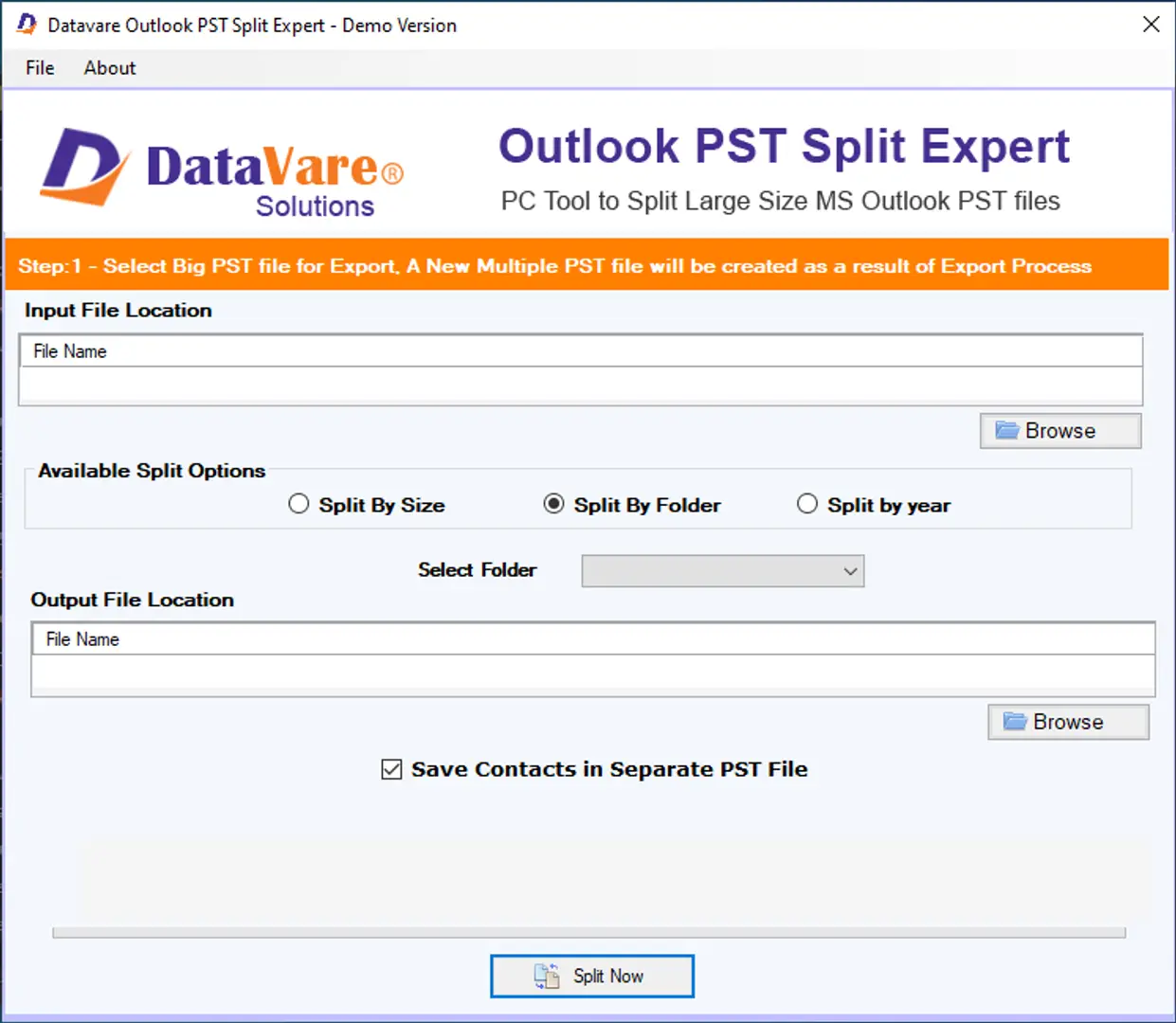
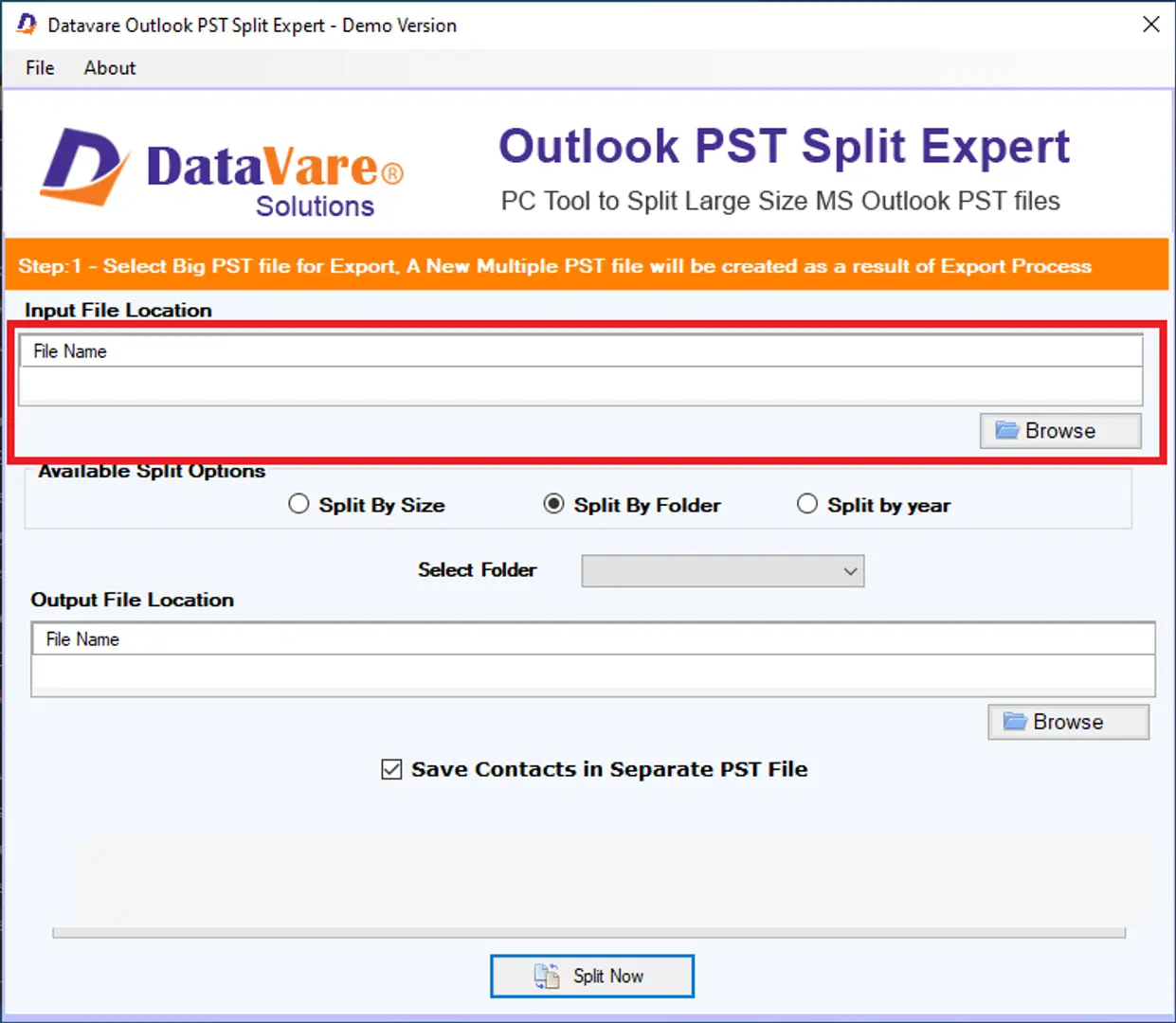
- Add PST File: Open the tool and click on “Add File” to choose the 20GB PST file you want to add.
- Choose a splitting option: Choose how you want to split the files: by size, date, year, or folder.
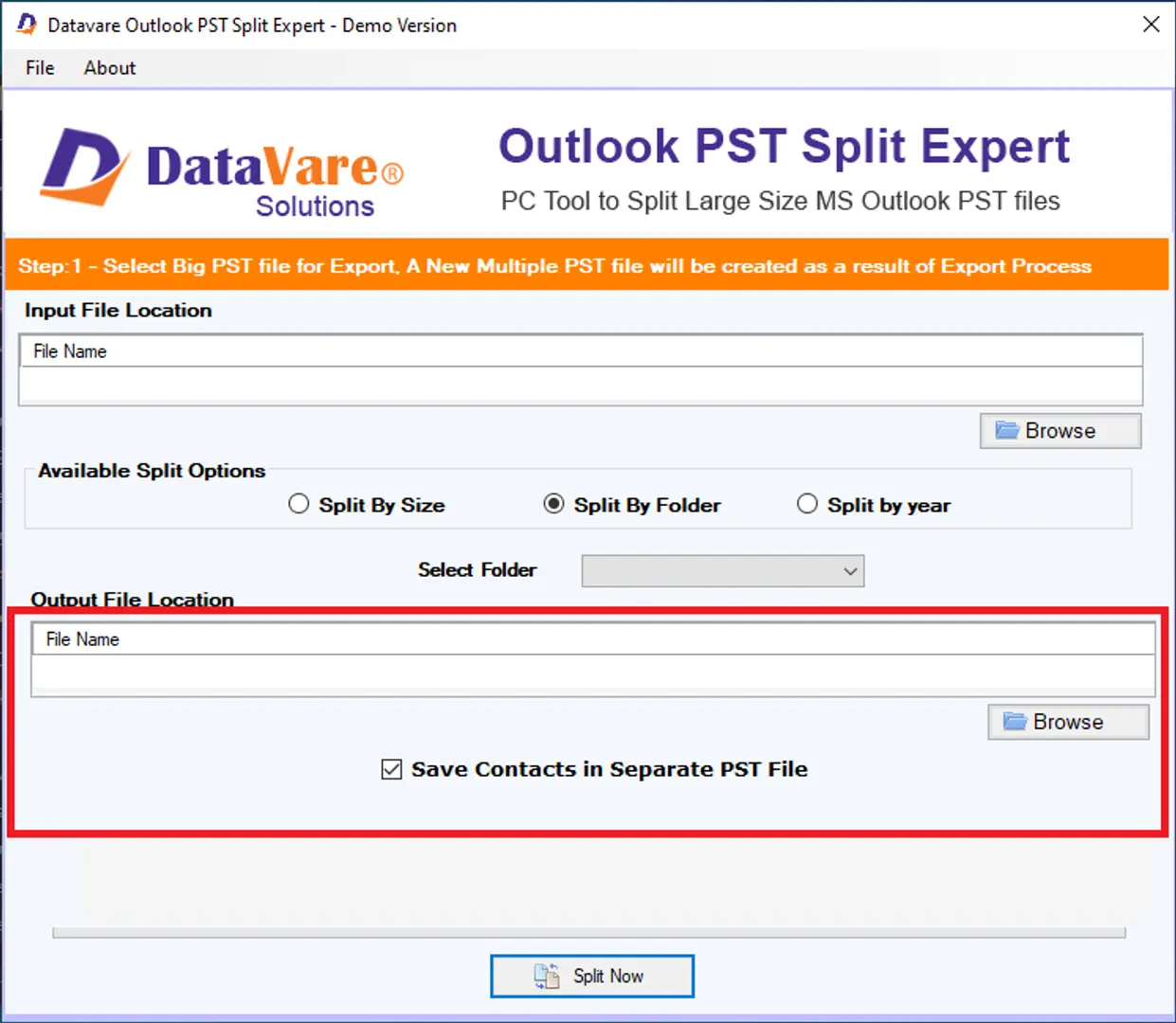
- Set Destination Path: Pick a place to save the split files.
- Begin the Process: Click on “Split” and let the tool work on your file.
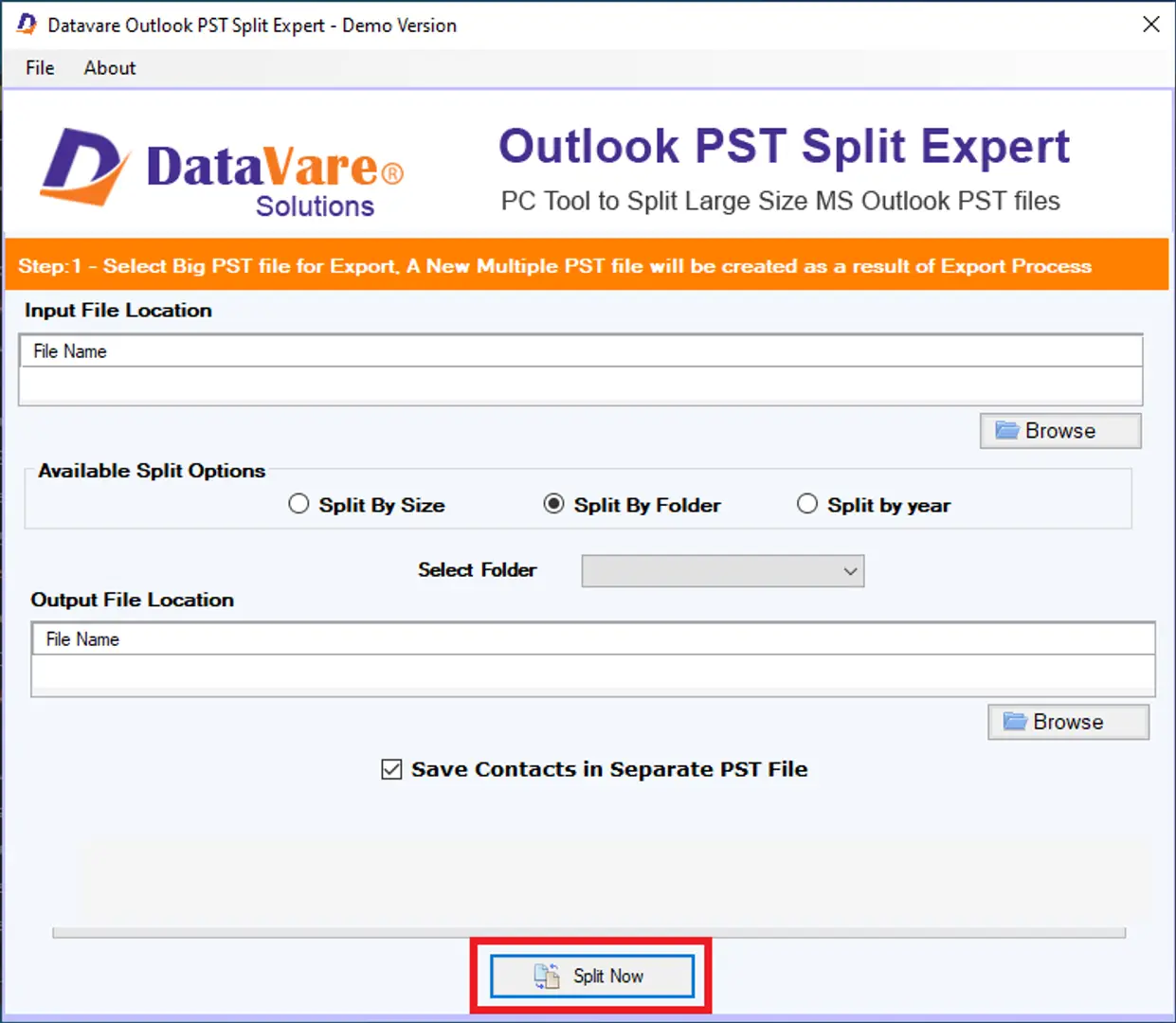
- It normally only takes a few minutes, but it depends on how big the PST file is and how well your computer works.
Advantages of Dividing PST Files Without Outlook
There are many reasons why you might want to split PST files without Outlook:
- Availability: You can execute the split on any Windows PC, even if Outlook is not installed.
- Faster Processing: Automated applications can process big files faster than the built-in functionality of Outlook.
- No Mistakes: Automating a process reduces the chance of human error.
- Saving time: Work that could take hours to do manually can be done in minutes.
- This makes it great for both personal usage and for IT managers and enterprises who get a lot of email.
- Things to Think About Before Splitting Your PST File
Here are a few things to think about before you start the process of splitting:
- Backup First: Before doing anything with the PST file, make sure to back it up first.
- Pick the Right Way: Think about how you will access and manage the new files later, whether by size, date, or folder.
- Avoid Duplicates: Don’t split the same file more than once without getting rid of the extra copies.
Conclusion
A 20GB PST file is not only annoying, it’s also dangerous. You can keep your data safe, handle your email better, and make your system run faster by breaking it up into smaller pieces. There are manual ways to use Outlook, but they can be slow and not work well for big files.
That’s when products like DataVare Outlook PST Split Expert come in useful. It is a reliable way to split large PST files without having to use Outlook because it has a simple interface and advanced functions. It saves time, lowers stress, and gives you more control over your email data, whether you’re an IT specialist or just a regular user.
Related Posts
© 2025 Invastor. All Rights Reserved
User Comments