
Ai Content Generator
Ai Picture
Tell Your Story

 Michelle Turner
How to Batch Compress PST Files in Outlook – Step-by-Step Guide
If you use Microsoft Outlook, you know how quickly your mailbox size can grow over time. This not only slows down Outlook but can also fill up storage space quickly. Compressing PST (Personal Storage Table) files is a great way to do this, especially when you need to compress multiple PST files at once.
In this blog, we will learn in detail:
Manual method to compress PST file
Third-party tools to compress multiple PST files in batch
Manual method – Step by Step Guide
Outlook has a built-in method to compress the unused space of a PST file. This method needs to be applied to each file individually.
Step 1: Open Outlook.
Step 2: Right-click on the PST file you want to compress in the navigation pane.
Step 3: Click “Data File Properties” (or “Properties for ‘Your PST File Name’”).
Step 4: Click the “Advanced…” button.
Step 5: Click “Compact Now”.
Step 6: Wait for the process to complete, then click “OK”.
Note: This method is effective only if you have recently deleted a large amount of mail or items. Compact Now removes the unused space, but it does not reduce the actual size of the content much if the deleted data is small.
How to Compress in Batch?
Manually compressing each PST file is quite time-consuming and repetitive. Especially if you have a lot of PST files, such as files archived by different projects or years.
That is why, many users resort to third-party tools that can compress multiple PST files at once.
Using Third-Party Tools
Below are some popular and trusted tools that help compress PST files in batch:
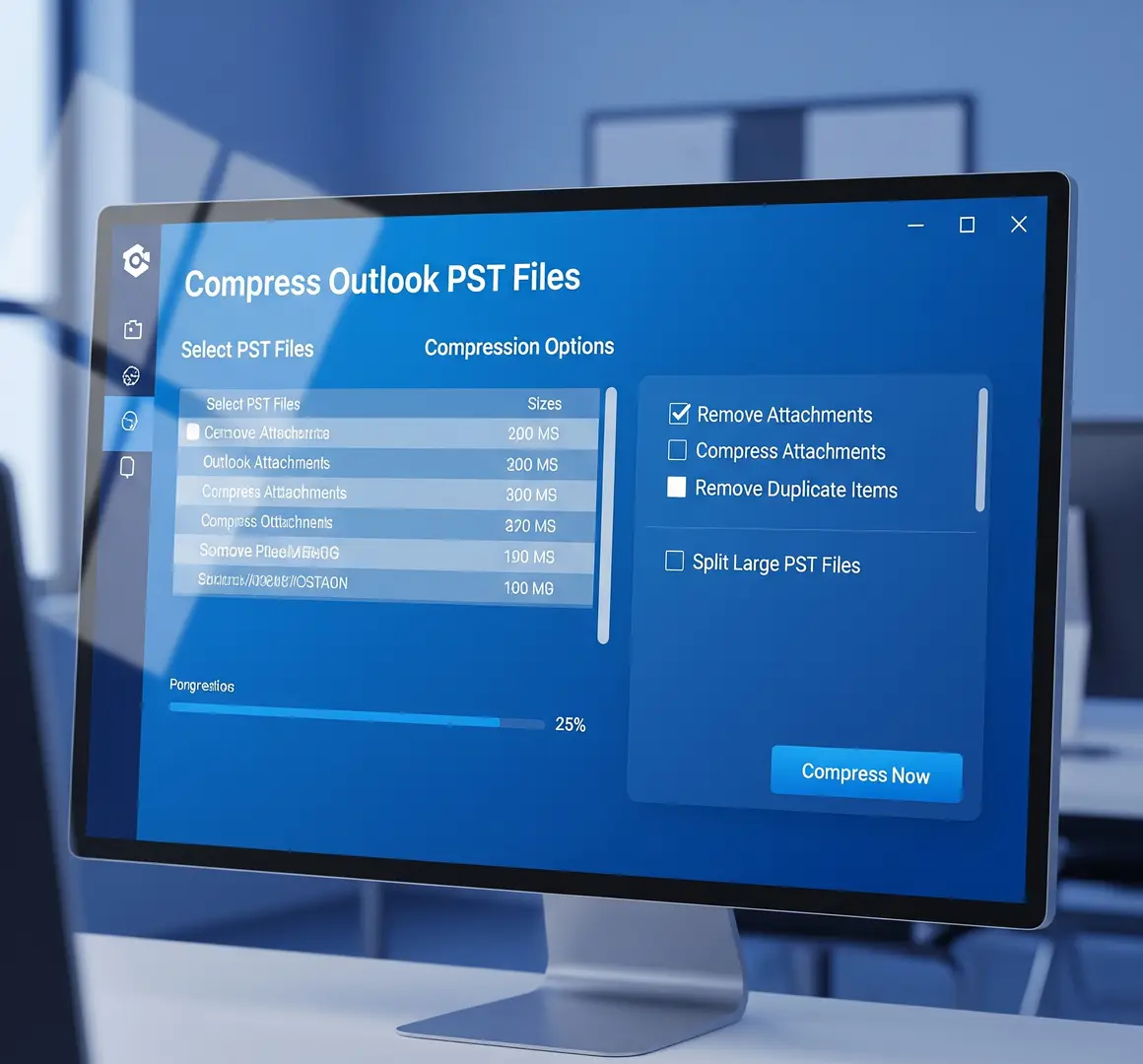
DataVare Outlook PST Compact Expert Tool, which is an easy, fast and professional way to shrink your PST files.
What is DataVare Outlook PST Compact Expert Tool?
This is a unique software that:
Easily compresses large PST files
Improves Outlook performance
Keeps your data safe
Can compact multiple PST files simultaneously in batch mode
DataVare has designed it specifically for users who use Outlook heavily and have years of emails, attachments and archived files.
Key Features
- Batch Mode Support
- You can select multiple PST files at once
- This tool can compact all files at once, which saves time
- Attachments Compress/Remove
- You can decide whether to compress or remove attachments, which can reduce the file size significantly
- Supports both ANSI and UNICODE PST files
- Compatible with both old Outlook (ANSI) and new Outlook (UNICODE) PST files
- Safe and non-destructive process
- Does not make any changes to your original PST files
- No Outlook installation required
- You do not need to have Outlook installed on your system to use this tool
- Simple and User-friendly Interface
- It is very easy to use even if you do not have technical knowledge.
How to use it? (Step by Step Guide)
Install the software
Download from DataVare website and install it on the system
Add PST files
Click on the “Add File” or “Add Folder” option to select your PST files
Set compression options
Whether to compress or remove attachments
Select the output location where the compressed PST file will be saved
Start the process
Click on “Compact” or “Start”
When the process is complete
You will get compressed PST files, which you can import or open in Outlook
Some Practical Tips
Always keep a backup before compressing
Oversized PST files (more than 20GB) may take more time to compress
Outlook performance may also improve after compression
Deleting or archiving unused/old emails also helps in reducing the size
The End
When the size of Outlook PST files is large, it affects both storage and performance.
I hope you found this information useful.
Send us a comment if you need additional information or if you are having problems with any of the steps!
Related Posts
© 2025 Invastor. All Rights Reserved
User Comments