
Ai Content Generator
Ai Picture
Tell Your Story

 Cricut Design Space
How to Use Cricut Explore Air 2 for Easy Craft Projects
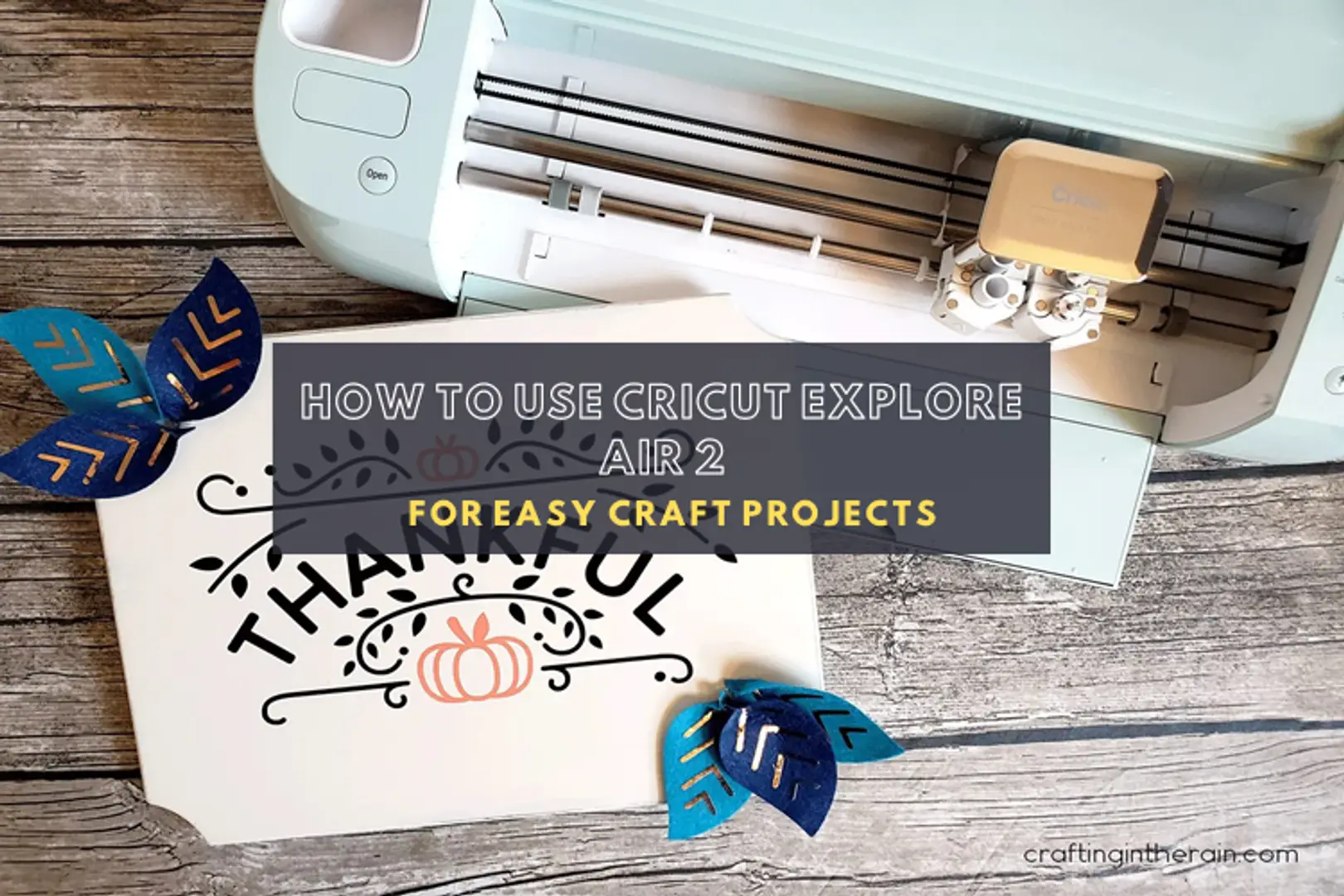
The Cricut Explore Air 2 is a digital crafting machine that lets you create everything from custom mugs to personalized stickers. Whether you are designing vinyl decals or decorating a gadget, this blog provides a simple, step-by-step guide on how to use Cricut Explore Air 2.
If you are new to Cricut or have just unboxed your new Explore Air 2, you’re probably wondering, “Where do I start?” Don’t worry - we’ve got you covered with a hands-on, project-based guide.
By the end of this tutorial, you will be able to complete your first Cricut project with ease using your Explore Air 2 machine.
What Do You Need to Use a Cricut Explore Air 2?
If you are using the Explore Air 2 for the very first time, you will need the following essential tools and materials to get started.
- Cricut Explore Air 2
- Power cord
- USB cable or Bluetooth-enabled device
- Fine-point blade
- LightGrip cutting mat
- Permanent vinyl
- Transfer tape
- Scraper
- Weeding tool
- BrightPad (optional)
Now that you know what materials you need, it’s time to start your first project with the Explore Air 2 machine.
How to Use Cricut Explore Air 2: Simple Steps
In this section, I will guide you through the complete process of using the Explore Air 2 with a fun and simple project. I’ll be styling my Instax Camera by designing a cute panda decal for it. Let’s see how we can do this together!
Step 1: Create a Design
- First, open Design Space and click New Project.
- After that, go to Images, find a cute panda or any desired image, and insert it.
- Now, add text (e.g., a name or phrase) using the Text tool, if necessary.
- Use the Group and Weld feature to combine image and text into a single cut path.
- Resize/group to fit your camera area snugly.
Step 2: Set Material and Mat
- Click on the Make It button, and Design Space shows each vinyl color on separate virtual mats.
- Select your material type, such as Holographic Sparkle or permanent vinyl.
- Set the Smart dial to Custom, then select the material type (e.g., Holographic Sparkle) from the list.
- Load vinyl color-side up onto the LightGrip cutting mat.
Pro Tip: Enable Fast Mode (for vinyl/cardstock only) to speed things up without sacrificing precision.
Step 3: Cut the Design
- Then, press the loading arrow when it blinks to load the mat.
- When the C (Go) button turns green, press it. The Explore Air 2 handles intricate details gracefully, and tiny letters and panda shapes come out crisp.
Step 4: Weed Out the Design
- Press Unload to remove the mat.
- Use a weeding tool and a BrightPad to remove excess vinyl with precision.
- Cut the transfer tape just bigger than your design.
- Apply transfer tape, scrape firmly, then peel off the backing.
- Now, your decal is ready for application.
Step 5: Apply the Decal
- Clean the surface with a dry cloth.
- Press tape onto the vinyl and burnish with a scraper to adhere.
- Peel off the backing, then align the decal on your Instax.
- Smooth from the center outward, then gently remove the transfer tape.
Now, your Instax is officially stylish. You’ve now learned how to use Cricut Explore Air 2 from setup to execution.
Frequently Asked Questions
Do I need a PC to use my Cricut Explore Air 2?
The Explore Air 2 utilizes the Design Space software for designing and cutting. This software is available on computers (Windows and Mac) and mobile devices (iOS and Android). While mobile apps are convenient, they may not offer the full range of features found in the desktop version of Design Space. A computer or laptop provides the most complete Design Space experience, with access to all features and tools.
Is Cricut Explore Air 2 good for small businesses?
Yes, Explore Air 2 can be a good tool for small businesses, particularly those focused on crafting, personalization, or creating custom items. It can draw and write, and it also features a Print Then Cut function, allowing for a wide range of project possibilities. It empowers businesses to produce items in-house, potentially saving costs associated with outsourcing production. This enables companies to produce distinctive items that make them more noticeable to customers.
How do I clean my Cricut mat after use?
To clean a mat, first, remove loose debris with a lint roller or scraper. Then, you can use a baby wipe, Windex, or a warm water solution and dish soap. Use a soft brush to clean the mat gently. Now, rinse thoroughly and allow it to air dry completely before replacing the protective sheet.
Do not use harsh chemicals or cleaners, such as abrasives, that could damage the adhesive. Avoid harsh chemicals and excessive scrubbing, as this can damage the mat’s adhesive.
What types of vinyl can I use with Cricut Explore Air 2?
The Explore Air 2 machine is compatible with a wide range of vinyl types, including adhesive vinyl (permanent and removable), specialty vinyl (like holographic or shimmer), printable vinyl, and even Smart Vinyl when used with a cutting mat. It allows you to print images or designs onto the vinyl before cutting, which is ideal for creating custom stickers and decals.
What software is needed for Cricut Explore Air 2?
Design Space is a free, user-friendly software available for both desktop (Windows and Mac) and mobile devices (iOS and Android). It allows users to design projects, access a library of images, fonts, and templates, and send those projects to the Cricut machine.
An internet connection is required to install and sign in to Design Space. Once signed in, some features can also be used offline, especially on mobile devices.
Visit: Cricut.com/setup
Source: How to Use Cricut Explore Air 2
Related Posts
© 2025 Invastor. All Rights Reserved
User Comments