
Ai Content Generator
Ai Picture
Tell Your Story


 madi sonlury
Instantly Combine PST Files Without Losing Attachments – Here’s How
Managing multiple Outlook PST files can be a difficult task for any professional or organization. Users often end up with a lot of PST files over time because they back up their mailboxes, save their data, or move it to a new location. Managing more than one PST file not only uses up system resources, but it also makes it hard to find and organize emails. Combining PST files into one file is a great way to make email management easier and Outlook run better.
In this blog post, we’ll talk about the best techniques to combine PST files into one without losing attachments or the integrity of the emails. We will talk about both the manual and the expert, a sophisticated third-party tool that can help you get the task done quickly and well.
Why Combine PST Format?
Before getting started, it’s necessary to know what the benefits of combining PST files are:
- Enhanced Organization: The utilization of a single PST file facilitates consolidated email access and improved organization.
- Reduced Redundancy: Consolidation gets rid of duplicate data and old archives.
- Faster Search and Navigation: It’s easier to find emails, contacts, and attachments in one file.
- Less Risk of Data Corruption: Fewer PST files mean a lower possibility of file damage and easier backup processes.
Problems that often come up while combining PST files
A lot of people worry that merging files could cause data loss, especially when it comes to attachments, folder structure, or metadata like timestamps and sender information. For people who are not tech-savvy, doing things by hand can also take a lot of time and be hard. This is the reason it is so important to select the appropriate approach.
How to Merge PST Files Manually
You can use Microsoft Outlook to combine several PST files into one. This method works, but it has certain problems with speed, ease of use, and the possibility of data duplication. But if you want to do it for free and only have a few PST files, here’s how:
Step 1: Open Microsoft Outlook and create a new PST file.
Click on the File tab.
Select Outlook Data File by clicking on New Items and then More Items.
Give the file a name and save it where you want it.
Step 2: Bring in PST files that are already there
Again, go to the File tab.
Click on Import/Export after choosing Open & Export.
Select Import from another program or file and then click Next.
Select the Outlook Data File (.pst) and select “Next.”
Find the PST file you wish to combine and click on it.
Pick one of the options for importing:
Let people make copies
Don’t import the same thing twice.
Put imported items in place of duplicates.
In the new PST file, choose the folder where you want to send it.
Click on “Finish.”
Follow the Import Steps Again
The import process should be repeated for each PST file that you wish to combine. All the information will be combined into the new PST file you made. This method keeps your attachments safe, but it can take a long time and doesn’t have additional capabilities like removing duplicates or combining only certain folders.
The Easiest Way to Combine Multiple PST Files into One
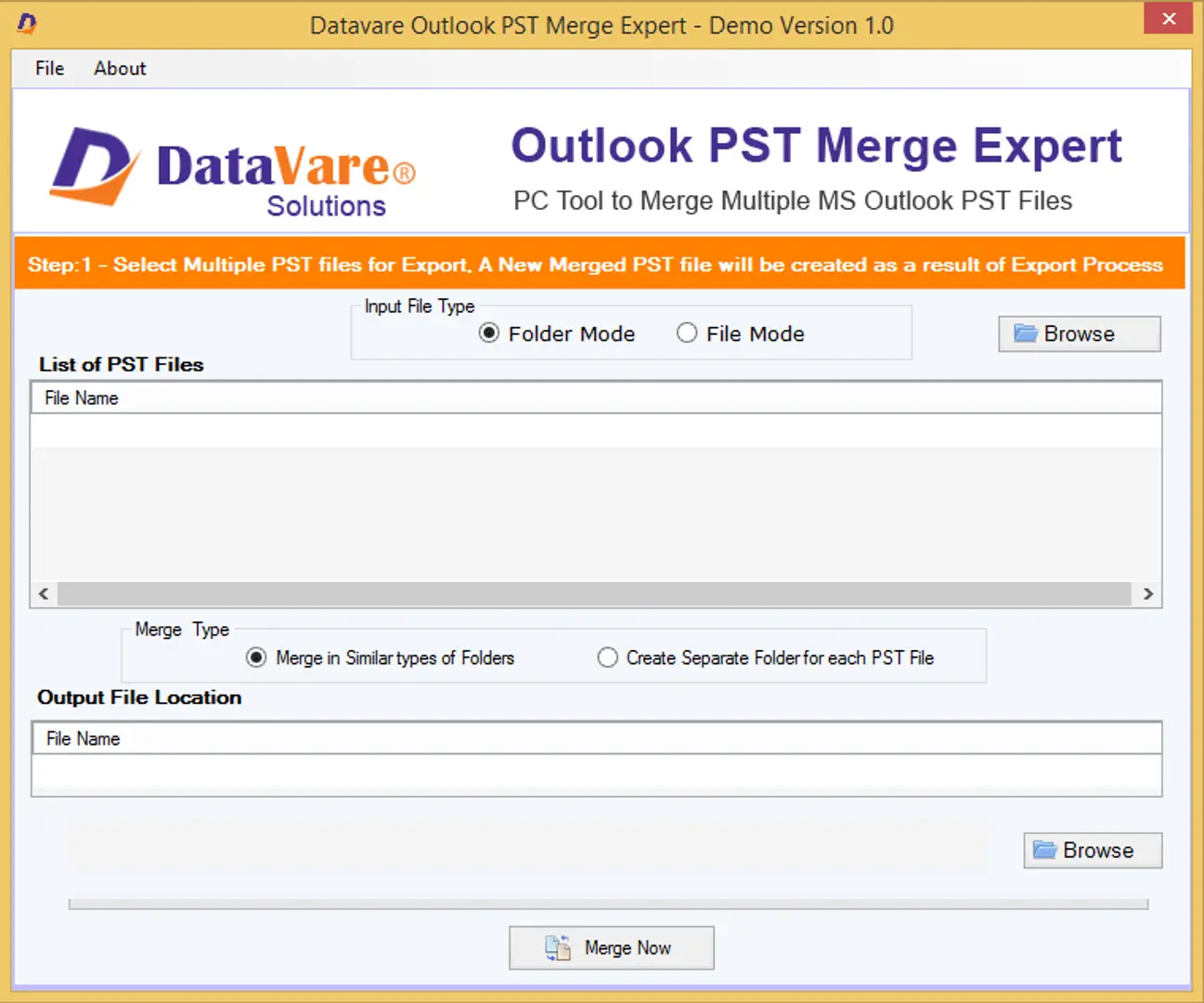
The DataVare Outlook PST Merge Expert Tool is a professional approach to combining numerous PST files without losing attachments or formatting. It’s faster, more efficient, and safer than other methods.
Important Features
- The technology makes sure that all attachments stay linked to the emails they came with.
- After merging, it keeps the original folder structure.
- Allows all kinds of PST files to be combined.
- Automatically finds and deletes duplicates to avoid having the same data again.
- You can combine PST files of any size, even big and very big ones.
- Users can select to combine PST files into a new PST file, an old one, or just certain folders, such as the Inbox or the Sent Items.
- A free demo version is available to test the software.
Using this tool, the following procedures should be taken to merge PST files:
- Get and install the DataVare Outlook PST Merge Expert Tool from the official website. It only takes a few minutes to install, and it’s not hard at all.
- Launch the application and select the “Add Files” or “Add Folder” option to import the PST files you wish to merge. You are allowed to include an unlimited number of files.
- Choose the kind of merge you want: Combine all the folders, like the Inbox, Sent, Drafts, and so on.
- Pick the path where the combined PST file will be saved. You can either create a new file or select an existing one.
- Press the “Merge” button. The application will take all the chosen PST files and combine them into one PST file, keeping all the attachments and formatting.
- After the process is done, you can open the PST file that has been combined in Outlook and see all of your emails and attachments in one location.
Last Thoughts
It’s not only difficult to handle several PST files, but it can also cause you to lose track of your emails and be less productive. While Outlook offers a manual way to merge PST files, it is not always practical for users dealing with large volumes or looking for features like duplicate removal and selective merging.
The professional is a quick, safe, and easy way to combine PST files without losing attachments. This tool makes it easier to merge and better your email management experience, whether you are a single user or a business.
Using a professional tool like DataVare’s solution is the best way to go if you want to avoid the trouble and dangers that come with manual merging.
Related Posts
© 2025 Invastor. All Rights Reserved
User Comments