
Ai Content Generator
Ai Picture
Tell Your Story

 John Maxwell
How to Convert EML File to MBOX File for Apple Mail?
Switching between email programs or platforms can sometimes a hassle, especially when you have to deal with multiple file types like EML and MBOX. If you wish to import a bunch of .eml files from Windows Live Mail, Outlook Express, Thunderbird, or any other email client into Apple Mail, you’ll need to change them to the MBOX format first.
Apple Mail, which is the default email program for macOS, doesn’t let you import EML files one at a time. It doesn’t work with EML files, but it does work with MBOX files, which are a common mailbox format that many current email apps support. This blog post helps you if you want to know how to easily access EML files into Apple Mail email clients.
Let’s go over the steps and find the best way to accomplish it with a trustworthy third-party program, the TrustVare EML to MBOX Converter.
Why Users Need to Change EML to MBOX for Apple Mail?
Here are some reasons in which EML to MBOX conversion is needed:
• Moving from Windows to macOS: You might wish to get to old EML backups on your new Mac.
• Changing email clients: Going from Thunderbird, Outlook Express, or Windows Live Mail to Apple Mail.
• Data recovery: Getting back communications that are saved in EML format for later use or archiving.
• Combining many EMLs into one folder in Apple Mail: You need to merge EMLs into MBOX files so that you can read them all at once.
How to Convert EML File to MBOX File for Apple Mail
There are two techniques to convert EML files to MBOX files:
Step 1: Manual Method to Convert EML File to MBOX for Apple Mail
This technique is hard and doesn’t always work. You have to export EML files into an email program like Thunderbird and then export the whole file as MBOX… But it needs a lot of setup and doesn’t always save formatting or attachments.
Steps:
• Install Thunderbird on your PC.
• Use the “ImportExportTools NG” add-on to bring in EML files.
• Store folder as MBOX format
• Put the MBOX file on your Mac.
• To import in Apple Mail, select File > Import Mailboxes.
Drawbacks:
• Time consuming and require technical skills
• Doesn’t guarantee that attachments will be kept
• Challenging for those who aren’t tech-savvy
Step 2: Use An Automated Tool to Convert EML File to MBOX File for Apple Mail
The TrustVare EML to MBOX Converter is a great choice if you want a trustworthy, quick, and easy-to-use tool. It lets you change a lot of EML files into MBOX format without losing any data or having any problems with the layout.
Important Features:
The TrustVare EML to MBOX Converter is a strong and easy-to-use program that may be used at home or at work. Here are some reasons why it’s the best choice:
• Bulk Conversion: Users may change thousands of EML files into MBOX format at once using this program. This saves time and effort, especially when working with big email archives or whole mailbox folders.
• Keeps Email Properties: The tool makes sure that all important email parts are kept throughout the conversion, such as the sender and receiver information, subject lines, timestamps, and attachments. Even the original formatting, such fonts, links, and inline graphics, is kept just as it was.
• Folder Hierarchy Retained: One of the most important things about it is that it may keep the original folder and subfolder structure of the EML source. This makes it easier for people to find and organize their emails once they have been imported into Apple Mail or another MBOX-compatible client.
• Drag & Drop Interface: The easy-to-use interface lets you drag and drop files and directories, so you can rapidly add individual EML files or whole folders without having to figure out complicated file paths. This makes everything easy and clear, especially for people who aren’t tech-savvy.
• Works with All EML Sources: The utility works with EML files from Windows Live Mail, Outlook Express, Mozilla Thunderbird, and any other program that supports EML. It can read and handle files no matter what email platform they came from.
• Free Trial Available: Users may try out software for free to see how it works and what features it has before they buy it. The trial version lets you do a few conversions, which gives you a good idea of what it can do.
How to Use TrustVare EML to MBOX Converter
To convert your EML files to MBOX with TrustVare, follow these steps:
1. Download the TrustVare EML to MBOX Converter for your Windows PC.
2 Browse the EML file or folder
 3. Select MBOX as the Output Format
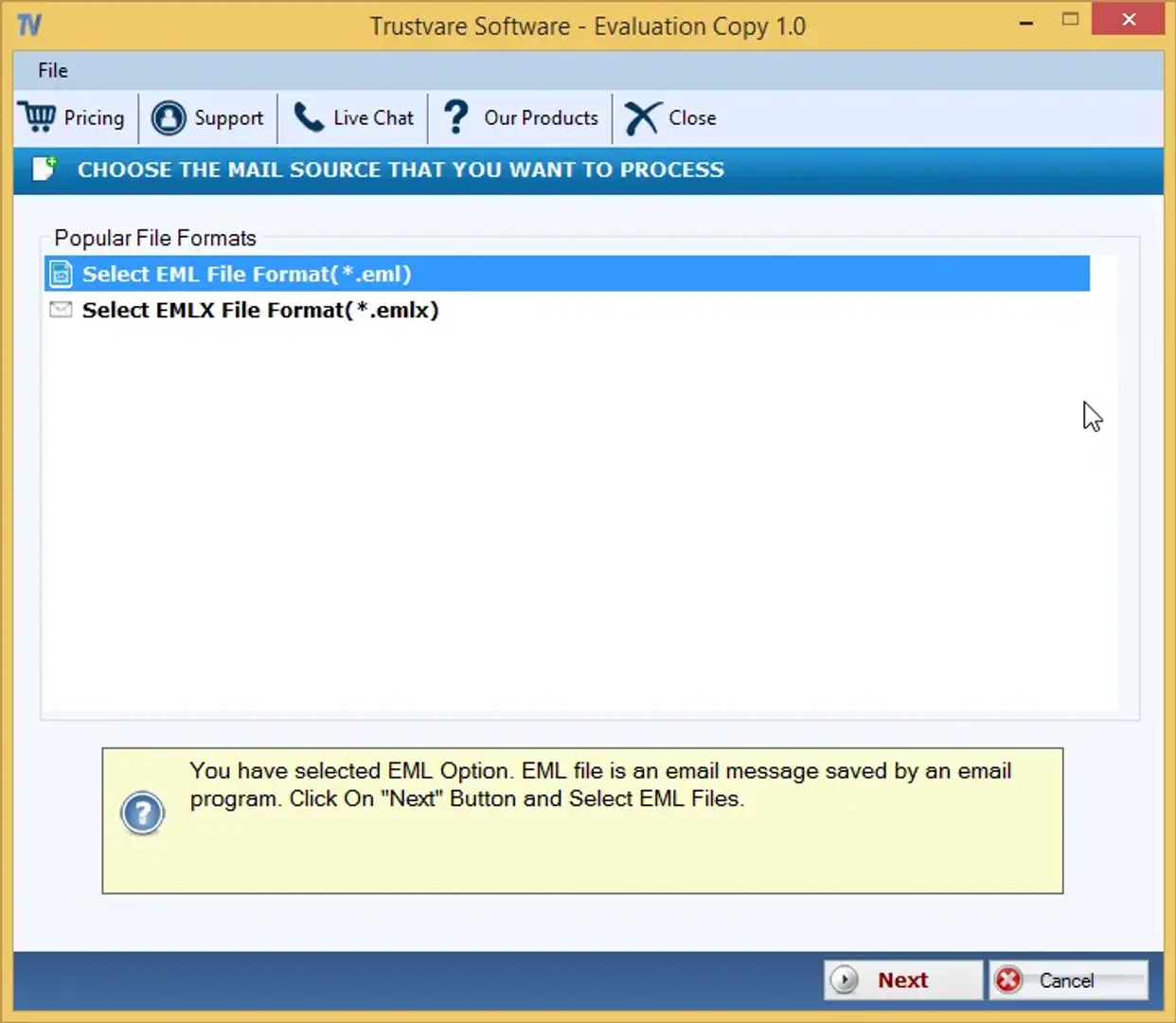 4. Choose where to save the MBOX files that were made.
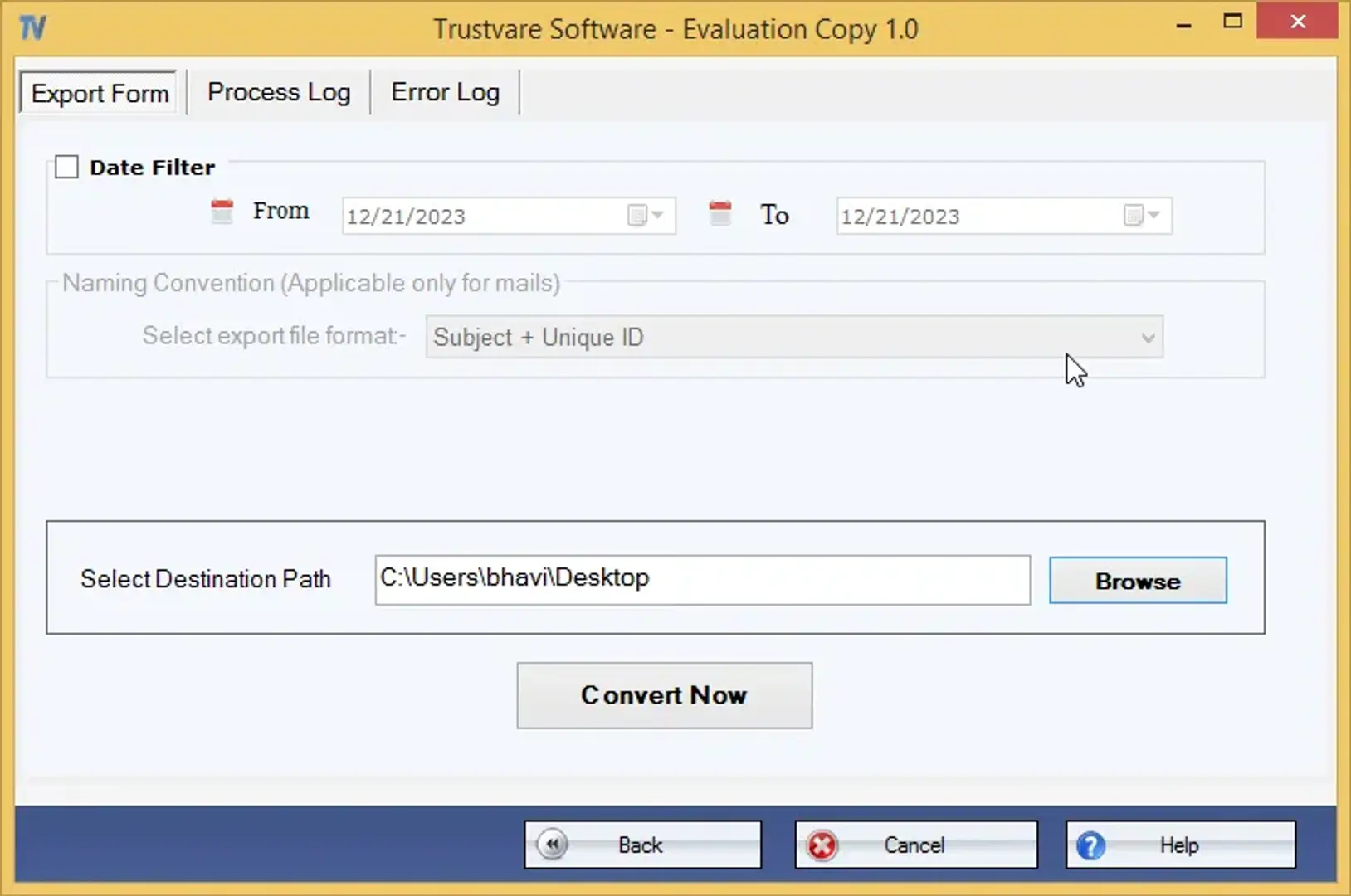
5. Tap on Convert Now for starting the conversion.
To import to Apple Mail, open Apple Mail on your Mac, go to File > Import Mailboxes, pick “Files in MBOX format,” find the file, and click Import.
That’s all there is to it! Apple Mail can now access your emails exactly as it does with regular texts.
Conclusion
If you want to convert EML file to MBOX file for Apple Mail then this using professional tool is the best alternative. You can do it by hand, but it’s not always dependable and it’s hard to do. Using a professional tool like the TrustVare EML to MBOX Converter is the best method to make sure your data is safe and in the right format.
Related Posts
© 2025 Invastor. All Rights Reserved
User Comments