
Ai Content Generator
Ai Picture
Tell Your Story

 Robert Parker
A Complete Guide to Changing WebP Files to JPG Format
WebP is becoming more and more popular because of this amazing compression technique. This is especially true for web developers who want to make their websites run faster and better. WebP is great, but it does have some problems, the most important of which is that it doesn’t work with outdated browsers and several software products.
WebP has a lot of benefits, like faster page loads, less bandwidth utilization, and a better overall experience for users. But with these benefits come problems with compatibility, so it’s important for developers to think about when and when to employ WebP pictures. This is where changing WebP files to formats that are more commonly accepted, like JPG, comes in.
Understanding of Formats?
JPEG, which is sometimes called JPG because of its file name extension, is now a common moniker for image files. It has deep roots and a lot of people use it. Let’s look at what makes JPG so popular.
What is a file in WebP?
- Google invented WebP, a new image format, in 2010 to make the web work better. WebP wants to make data transport online easier by enabling better compression. Images are a big part of this. The best thing about it is that it makes high-quality photos with far reduced file sizes than JPG and PNG. WebP is a popular choice among developers who want to improve the speed and performance of their websites because it can compress images well without losing much quality.
- WebP is not only good at saving space, but it also has a lot of useful features. Like GIF and PNG, the format can allow motion and transparency. It also does a great job of balancing image size and quality. WebP has some problems, the most important of which is that it doesn’t work with all web browsers and graphic editing applications. This shows how important it is to have conversion tools like WebP to JPEG.
What is JPG Image Files
- The Joint Photographic Experts Group came out with the JPEG format in 1992. It was one of the first image formats that let you compress images well. Back then, digital storage and internet bandwidth were both hard to come by and expensive. A file format that could make files much smaller without losing too much quality was a big help.
- One of the best things about JPEG is that it can balance image quality and file size. JPEG’s lossy compression method lets users choose how much compression to employ, which makes it useful for a wide range of situations, from web graphics where smaller sizes are important to printing where quality is more important.
- JPEG’s popularity led to a virtuous circle of adoption over time. More artists adopted it as more software and device companies supported it. JPEG became the default or go-to choice for everything from image editing software to cameras to browsers.
- JPEG is easy to use and doesn’t give users too many choices. PNG files can be transparent, and GIF files can have animations, while JPEG files are meant for still images and compress well. People who don’t need complicated features like this one because it’s so easy to use.
Why change a WebP file into a JPG?
- Every type of image format has its own pros and cons. Even though WebP has some technological advantages, there are practical reasons why developers and designers would desire to change WebP to JPG:
- Not all software tools, especially older ones or those that are only used by a small group of people, have been updated to work with WebP. Some well-known programs for editing or viewing images could work best with JPG. If you’re used to these kinds of tools, converting WebP to JPG can make your job run more smoothly.
- Some devices, especially older ones, might not be able to handle WebP on their own. Some older smartphones, digital image frames, and some printers are examples. JPG is still a good choice for the best compatibility with a wide range of devices.
- Some internet services or platforms may only accept certain types of image files. For example, some online printing businesses or stock photo sites could only accept JPG files or prefer them.
- Most people probably know more about JPG than WebP. If you’re sending pictures to those who aren’t very tech-savvy, sending them in JPG format can help avoid problems or confusion with file processing.
- It’s important to remember that both JPG and WebP use lossy compression. When you change a file from WebP to JPG, there is a chance that the quality will get worse because of the double compression. In some cases, though, the fact that JPG is easy to use and works with a lot of different programs may be more important.
Most Frequent Ways to Convert WebP files to JPG:
Changing formats is something that needs to be done often. Being able to switch from WebP to JPG can be very important for compatibility, ease of use, or sharing. Here are several common ways to do this:
Using the Image Converter Software on Windows OS.
The Softaken Image Converter is a simple and quick tool that can change files to WebP, PNG, JPG, BMP, ICO, and many other formats without any problems. This program has great features that let you convert a lot of images of any size without losing quality. This WebP image converter lets people convert WebP image files or folders all at once and save them in any useful image format, such as PNG or JPEG, with 100% high quality. This program has easy-to-use interfaces that are helpful for both technical and non-technical users. Users can easily use this tool to change WebP files to JPG format. This program has a background remover that doesn’t leave a watermark and can compress images, making it easy for users to handle any large image in a folder. This Image Converter program will work with any version of Windows, old or new.
Main Features of the Image Converter Tool
- This program can alter the format of many images at once, which saves users a lot of time.
- It has a basic layout and user-friendly features that make it easy for both expert and inexperienced people to use without any problems.
- This software can convert picture files in a number of formats, including WebP, PNG, JPEG, BMP, ICO, TIFF, and GIF.
- It can compress a lot of big images at once and make them easier for consumers to desperately needCarrie.
- You can download and use this tool on any of the following operating systems: Windows 11, 10, 8.1, 8, 7, XP, or Vista.
- You can try out the image converter’s functions for free before you buy the complete edition.
How to Use the Software to Convert Images
- Get the picture converter and set it up on your Windows computer.
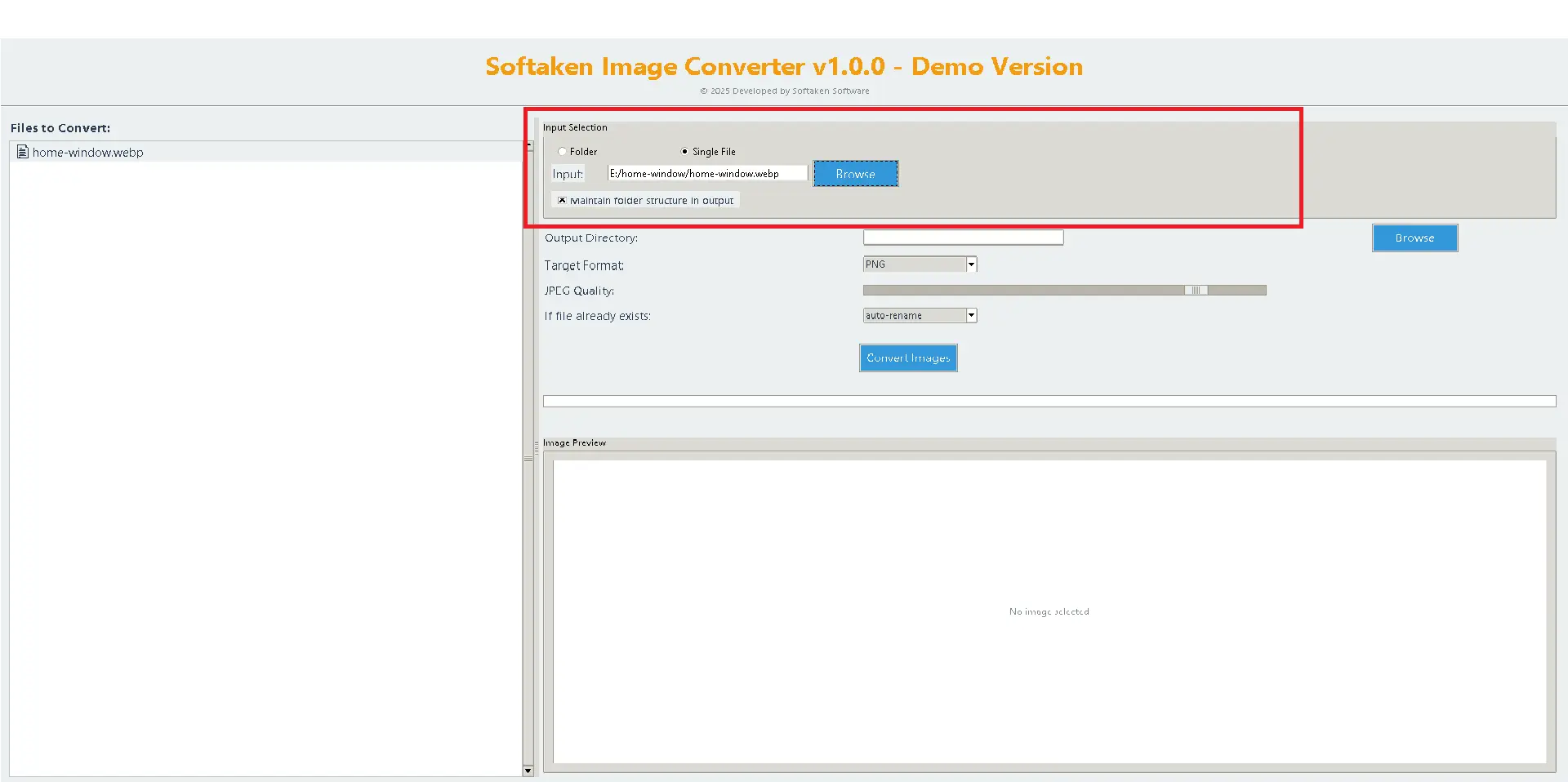
- To change the format, add files or folders of images.
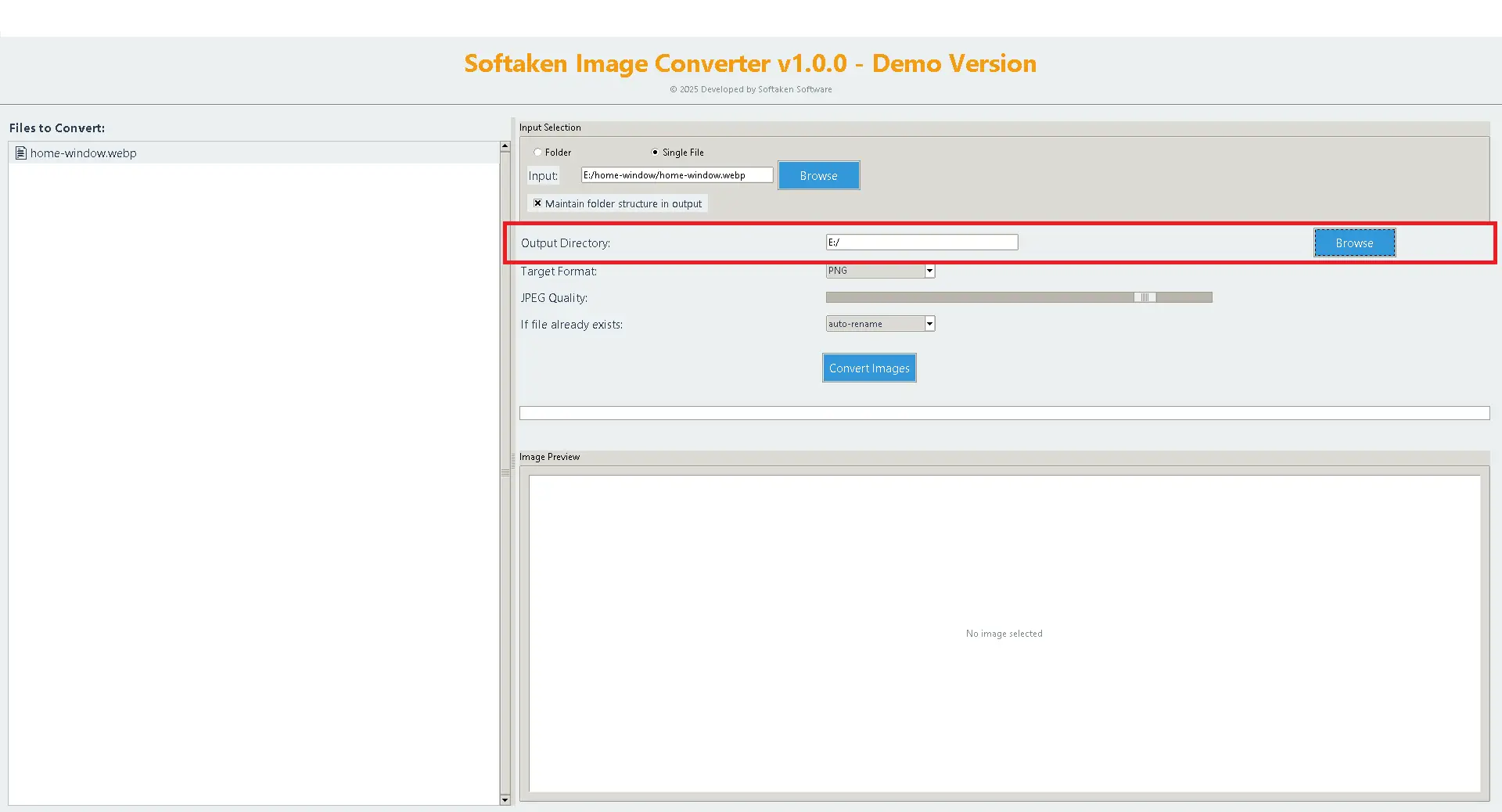
- Now go to the place on your computer where you wish to save the new image files.
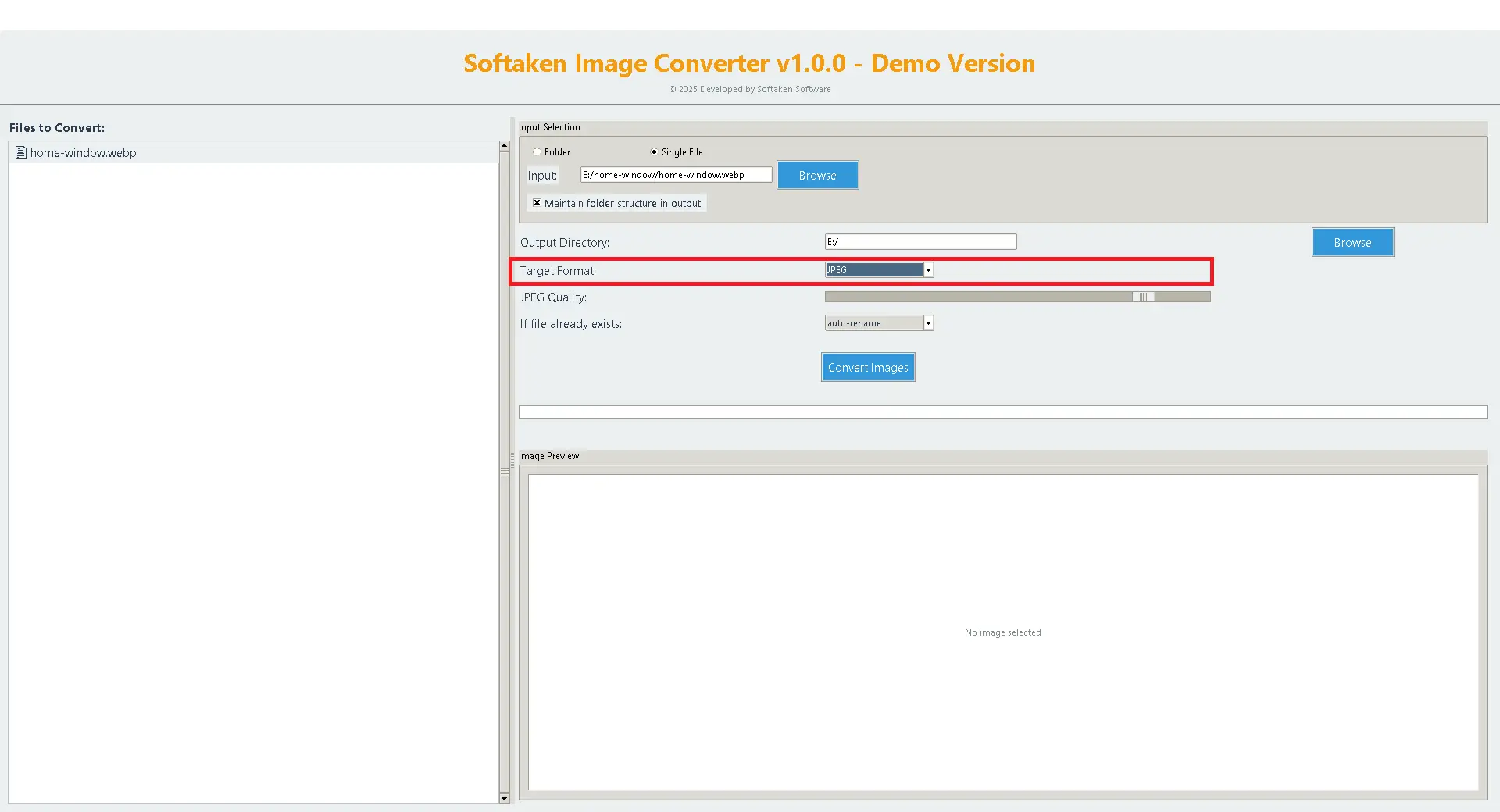
- Next, you’ll choose the format from the list of formats that you want to use to modify the image format.
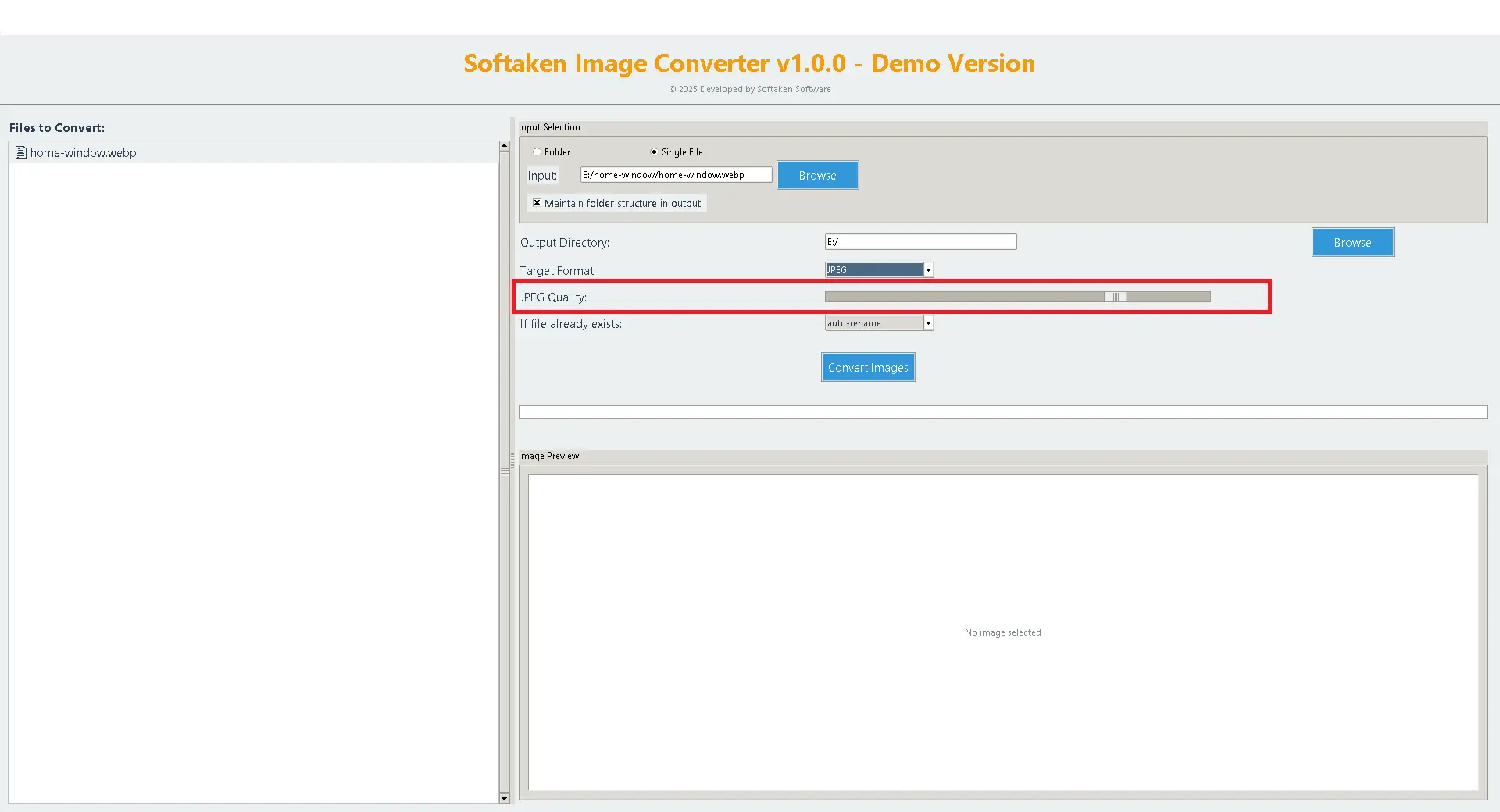
- You can choose the image quality that works best for you.
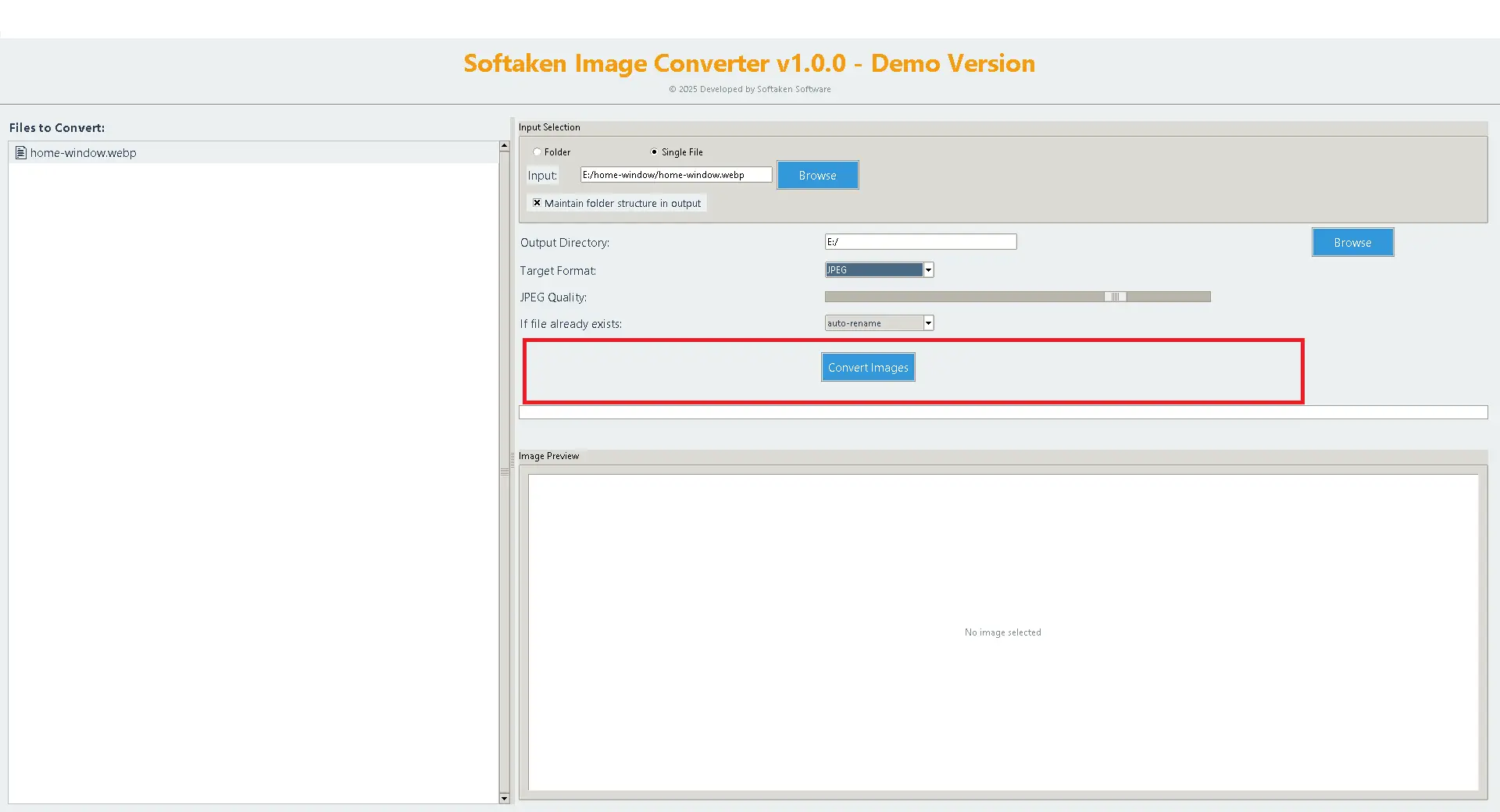
- Press the “Convert Now” button to start the process.
Conclusion:
It is not hard to convert WebP files to JPG format. If you use a good tool like Softaken Image Converter, it will be easy. Users can easily manage website images, change photos, or make sure they work on all platforms using this software. If you follow the procedures in this tutorial, you can rapidly turn your WebP files into JPG photographs that are commonly accepted without losing any quality. It will save you time, make sure everything works together, and make your work easier.
Related Posts
© 2025 Invastor. All Rights Reserved
User Comments