
Ai Content Generator
Ai Picture
Tell Your Story

 John Corner
How to Open MBOX Files in Outlook Account Securely?
MBOX files are the most popular and widely used for storing email messages. These files are supported by a wide range of applications including Thunderbird, Apple Mail, Eudora, and more.
However, if you have decided to switch to the MS Outlook app and want to retain access to your MBOX files as they contain very crucial information related to your work, you will face issues because Outlook does not support the MBOX format.
Therefore, you cannot directly open MBOX files in Outlook. But there are ways they can help you get this task done.
So, in this article, we are going to explain the most important ways that can help you open MBOX files in Outlook easily.
How to Open MBOX Files in Outlook?
You cannot directly open MBOX in Outlook because Outlook does not support MBOX. For this, you must first convert your MBOX files to a file format supported by Outlook which is PST. There are many ways that can help you accomplish this task to open MBOX files in Outlook by converting to PST. Let’s take a look at the most effective and popular methods.
Method 1: Using a Third-Party MBOX to PST Converter
The most effective way to open MBOX files in Outlook by converting MBOX files to a file type supported by Outlook which is PST. There are several third-party apps available that can help you accomplish this task. But we would like to advise you to choose the most reliable and highly recommended File Converter Converter. This application can help you open unlimited MBOX files in Outlook without facing any kind of issues. The software has a very simple and complete interface free from any kind of risk.
Easy Steps to Open MBOX into Microsoft Outlook Using Third-Party App
- Step 1: Firstly, download, install, and run the suggested application on your Windows computer.
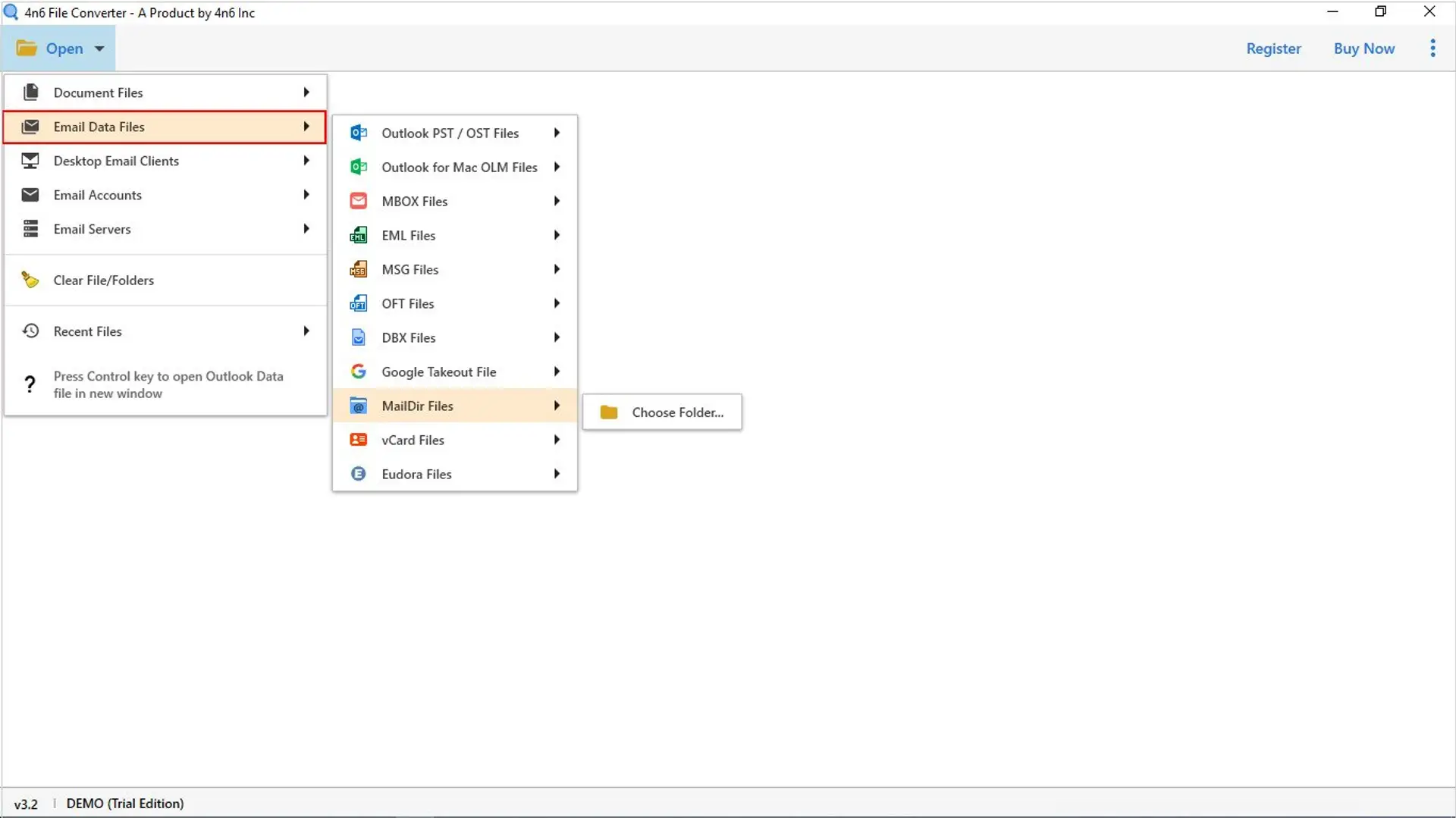
- Step 2: Click the Open button, choose Email Data Files option, and select MBOX Files.
- Step 3: Now, the application allows you to choose MBOX files or folders as per the requirements.
- Step 4: Once you select MBOX files or folders, this application will quickly load them on the left panel. Click on the loaded MBOX files and preview them.
- Step 5: Now, click the Export button and select PST as file saving option.
- Step 6: Choose the location where you need to get converted files, enable filters if needed, and click Save to begin the conversion process.
The application starts converting MBOX files into Outlook supported PST format. This process will take only a few moments.
Method 2: Using An Email Client Like Thunderbird
If you don’t want to go with third-party software, you can also manually convert MBOX files to PST format by using email client app like Thunderbird. Thunderbird allows you to import files and can then forward the emails to Outlook account.
Step-by-Step Method
- Step 1: Open your Thunderbird account.
- Step 2: Go to the Menu, choose Add-ons and search for the ImportExportTools.
- Step 3: Install add-ons to enable the import of your MBOX files.
- Step 4: Once the add-ins is installed, go to Tools, select ImportExportTools, and choose Import MBOX Files option.
- Step 5: Now, choose the MBOX file you need to import into Thunderbird.
- Step 6: In your Thunderbird account, setup Outlook account by choosing Account Settings and Add Mail Account.
- Step 7: Enter the login credentials of your Outlook account and complete the setup process.
- Step 8: Once your MBOX are imported into Thunderbird account, select the message you need to transfer.
- Step 9: Right-click, select Forward As, and choose Attachment.
- Step 10: Now, forward the email to your Outlook account.
- Step 11: Open your Outlook account and access the forwarded email in your Inbox. You can now move or organize them if required.
Method 3: Using Manual Steps via IMAP
This method is best if you only have a few MBOX files. This method involves using the IMAP-enabled email application such as Thunderbird to upload MBOX emails to an IMAP Server and then syncing them to an Outlook account.
- Step 1: Install or Open the Thunderbird application.
- Step 2: Import your MBOX files into Thunderbird by following method 2.
- Step 3: Now setup an IMAP email account like (Gmail, Yahoo) in Thunderbird.
- Step 4: Please ensures that the server settings support the IMAP.
- Step 5: Once you MBOX files in Thunderbird account, move or copy them into IMAP folder.
- Step 6: Now, setup the same IMAP account in your Outlook account.
- Step 7: Sync your account and all the MBOX files will show in your Outlook account.
Conclusion
Although MS Outlook does not directly support MBOX files, there are several methods that can help you open MBOX files in your Outlook account by converting to PST. In the above content, we have mentioned the top 3 methods to accomplish this task. All 3 methods are good and effective. But it is recommended to use the professional third-party software to get this task done without facing any kind of issues.
Related Posts
© 2025 Invastor. All Rights Reserved
User Comments