
Ai Content Generator
Ai Picture
Tell Your Story

 madi sonlury
Split large PST file into several smaller PST files – Full Guide
In this post, we are going to discuss the simple solution to split large PST file into several smaller PST files. A lot of users are facing oversized PST file issues and want to reduce PST file size. To resolve this problem, split large size PST file into smaller PST files is the best solution.
How to split large PST file into multiple small PST files?
An oversized PST file is not easy to manage, slow down Outlook’s performance and can incur data loss & corruption. Too large PST file in Outlook account means it has been created a long time ago.
You can reduce the size of PST file manually with Outlook tools. Let us understand them in detail.
• Move to Folder option
- Go to File, account settings and then select account settings
- Go to Data files tab and click on Add button to add a new PST.
- Use File, Open & Export and then Outlook data file option to open old Outlook PST file.
- In old PST file, select messages or other items of Outlook that you want to move.
- Right-click on the selected items and select Move, and then Other folder option.
- Choose a folder in newly created PST to move the selected items from old one.
• Import and Export wizard
- Go to File, open and Export and then select Import/Export
- Choose Export to file option and click Next.
- In Export to file step, select Outlook PST file and click Next.
- In Export Outlook file, select Outlook folders and click Next.
- Specify the location for new PST by click on Browse button. Click Finish.
- Now, delete exported folders from source data file to reduce its size.
• Archiving method
- Go to File, Info, Clean up Tools and select Archive
- Select the desired folder to archive and date that you want to archive items older than
- Specify the location and provide a name for archive PST and click OK.
Limitations of manual methods:
By moving the data manually, you can lose your valuable data.
Email properties can be lost with manual methods
The manual solution is very time consuming and lengthy.
Manual methods requires technical knowled.
It is a complicated process therefore chances of human mistakes are high.
Smart technique to split large PST file into several smaller parts
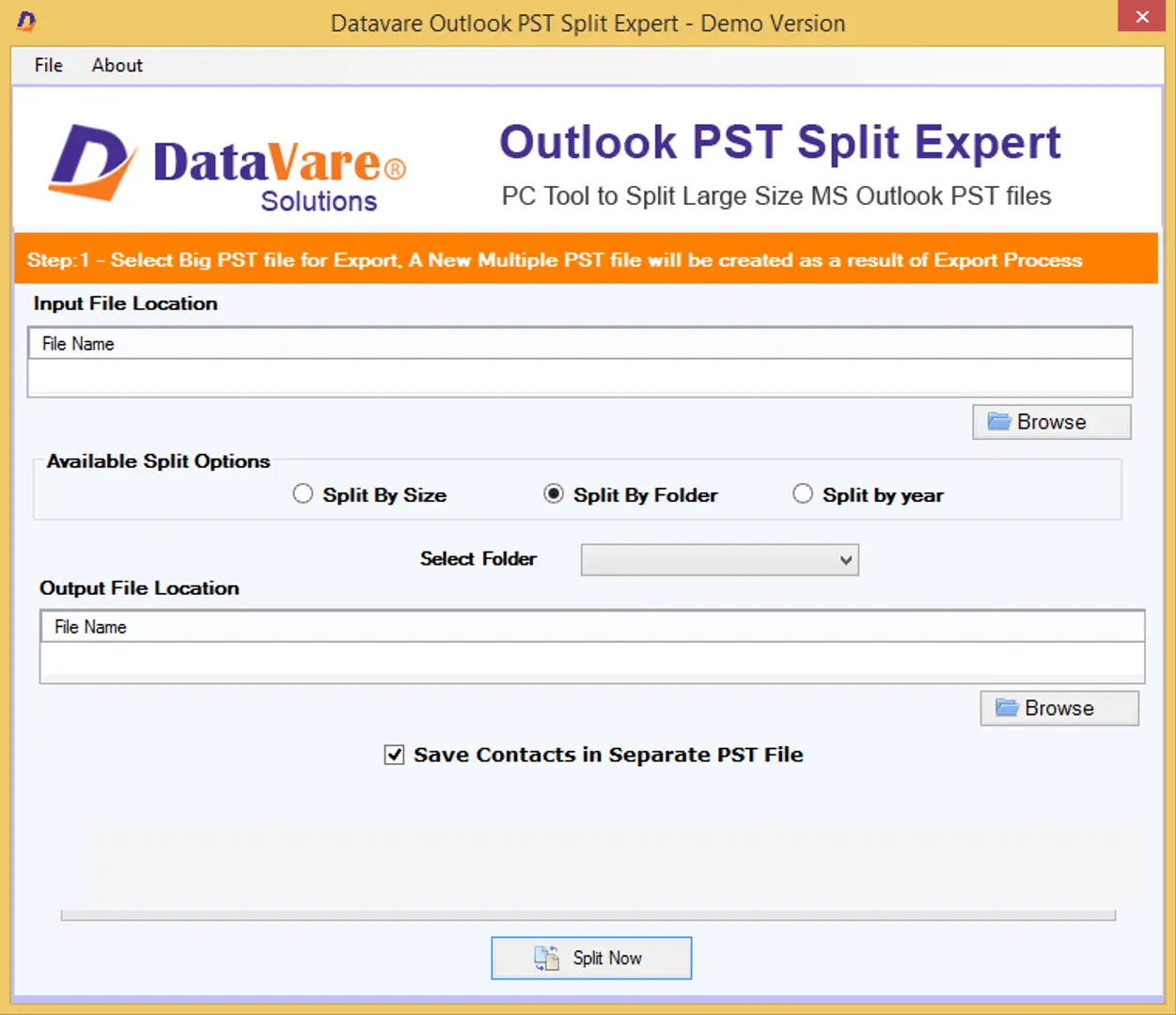
To smartly and accurately Split large PST file, you can use DataVare Outlook PST Split Software. This is the best and tested solution by experts that will help you to split PST file by size, year and folder. It maintains the integrity of data while dividing an oversized Outlook PST file.
This software will helpful in resolving these queries of users:
• How to split PST file into smaller parts by setting the size?
• How to split PST file into smaller parts for specified period?
• How to split PST file without starting Outlook?
• How to split PST file from multiple mailboxes?
• How to split an archive PST file?
• How do I split PST file by year or month?
• How do I split my big PST file into half?
Procedure with Split PST Program to divide large PST file into parts:
- Install and Launch Split Outlook PST Software on your system.
- Add Outlook PST file that you want to split
- Check PST file data in preview pane.
- Choose size, year or folder option to split PST data file.
- Mention a path for saving the resultant PST files.
- Finally, press the Split Now button.
- Taking a few minutes, PST file is split into multiple smaller PST files.
Concluding Lines
Through this post, we have mentioned manual ways to split large PST file. But due to various limitations of manual solutions, professional software is suggested to use that overcome all limitations of manual ways. The software is 100% safe and tested by experts to quickly split large PST file into several smaller parts. Get its demo version before you purchase the software.Split PST video datavre
Related Posts
© 2025 Invastor. All Rights Reserved
User Comments