
Ai Content Generator
Ai Picture
Tell Your Story

 technical science
How to Reset Your HomePod Without a Phone
Smart home devices like the Apple HomePod have revolutionized how we interact with our homes. With just a few simple voice commands, you can play music, set reminders, or control your smart lights. However, even the smartest devices occasionally face hiccups, leaving you with no choice but to reset them to restore functionality.
If you’re wondering how to reset your HomePod without using a phone, this guide is for you. Whether your HomePod is unresponsive, switching to a new Wi-Fi network, or preparing to sell or give it away, resetting it can often solve the problem.
By reading this post, you’ll learn:
Why you might need to reset your HomePod.
How to reset your HomePod manually without using a phone.
Additional troubleshooting tips to keep your device running smoothly. Why you might need to reset your HomePod. How to reset your HomePod manually without using a phone. Additional troubleshooting tips to keep your device running smoothly.
Keep reading to master the process and get your HomePod working as good as new in no time.
Why Resetting Your HomePod May Be Necessary
There are several situations where resetting your HomePod may be the best or only solution:
Connectivity Issues: When your HomePod can’t connect to your Wi-Fi or respond to voice commands, a reset may resolve these issues.
Software Glitches: Like any tech device, the HomePod can sometimes experience bugs that require a reset.
Changing Ownership: Planning to sell or give your HomePod to someone else? Resetting ensures that your personal data is wiped, preparing the device for its new owner.
Troubleshooting Settings: If your HomePod isn’t syncing properly with other Apple devices or services, starting fresh can help solve these problems.
Resetting your HomePod doesn’t have to be complicated. Even without a phone, you can easily complete the process and restore default settings.
How to Reset a HomePod Without a Phone Step by Step
If you don’t have access to an iPhone or the Home app, you can reset your HomePod manually. Follow these steps:
1. Disconnect the Power
Unplug your HomePod from the power source. Leave it disconnected for at least 10 seconds to ensure a proper power cycle. Then, reconnect the power.
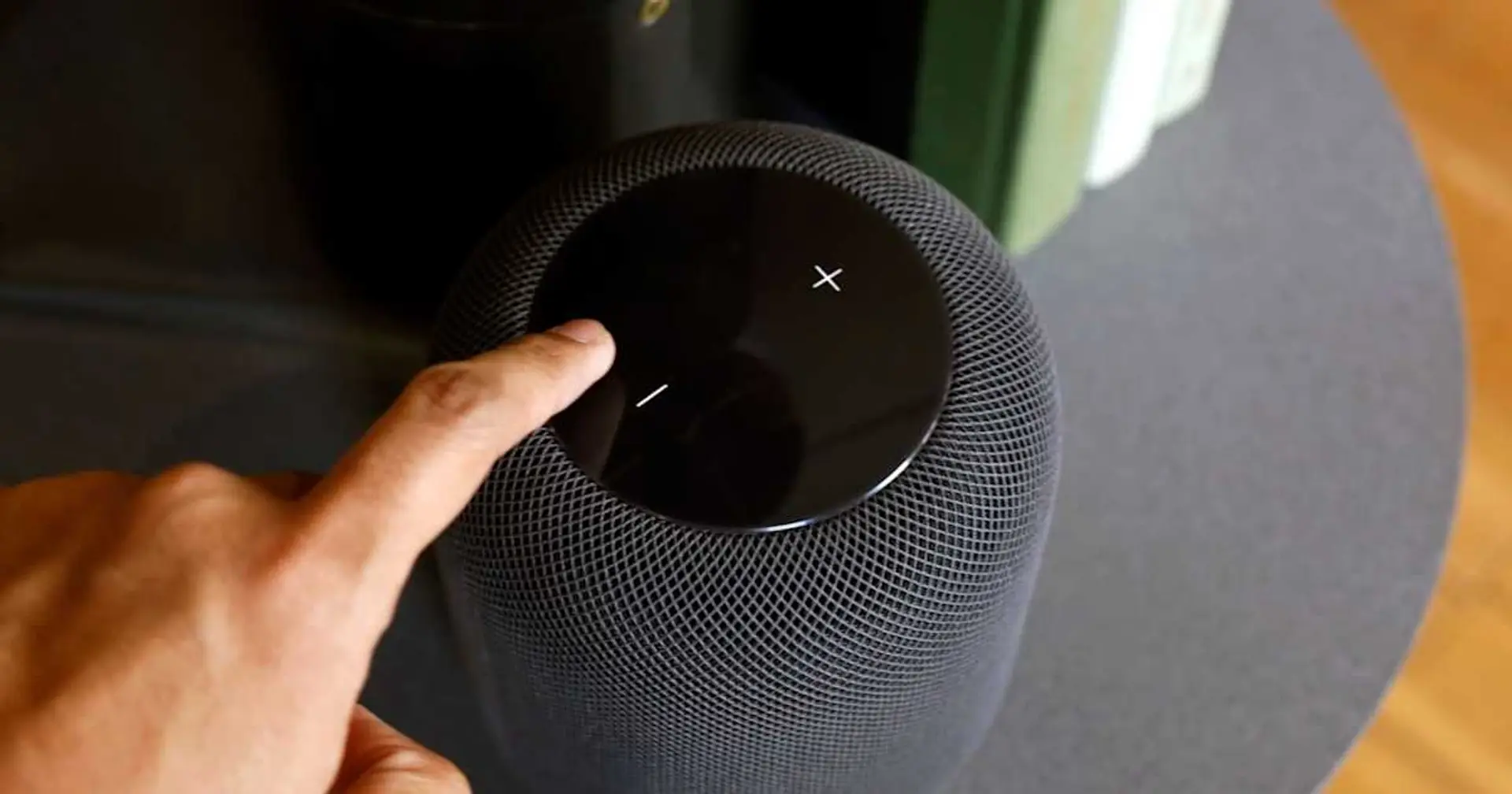
2. Touch and Hold the Top of the HomePod
Once the HomePod is powered on, touch and hold the top of the device. Maintain your contact as the system begins the reset process.
3. Wait for the Lights
After a few seconds, the spinning white light on the top of the HomePod will turn red. This indicates the reset process has begun.
4. Listen for Siri's Confirmation
Keep holding the top of the device until Siri announces, “Your HomePod is about to reset.” Continue holding until you hear three beeps.
5. Complete the Reset
Once the beeps sound, your HomePod has been completely reset to its factory settings. Now, you can set it up again as if it’s brand new.
If these steps don’t work, you may need to try an alternative method, which we’ll cover below.
roubleshooting Reset Issues on a HomePod Without a Phone
Sometimes, resetting your HomePod without a phone may not go as smoothly as planned. Here are some troubleshooting tips to address potential hiccups during the process:
1. Check Your Power Connection
Ensure your HomePod is securely plugged into a working socket. Power interruptions can interfere with the reset process.
2. Clean the Touch Surface
If your HomePod isn’t responding to touch, wipe the top surface gently with a clean, dry cloth to remove any smudges or debris.
3. Perform a Second Attempt
Occasionally, the reset process doesn’t fully complete on the first try. Simply repeat the steps mentioned above, ensuring you follow the instructions carefully.
4. Contact Apple Support
If all else fails, reach out to Apple Support via their official website or visit your local Apple Store.
For more resources on troubleshooting HomePod issues, check out MacRumors or The Verge, both of which frequently feature Apple-related content.
What Happens After a Reset
Once you reset your HomePod:
All personal settings, such as Wi-Fi configurations or Siri voice profiles, will be restored to default.
The HomePod will no longer be linked to your iCloud account.
You’ll need to manually reconnect the HomePod to your devices and network during the setup process.
Be sure to back up any important settings or preferences before performing a reset.
Preparing for a New Setup
After resetting your HomePod, setting it up again is simple. Plug it in, open the Home app on your Apple device, and follow the on-screen instructions. If you don’t have a phone, your HomePod can also be set up manually by pairing it with another Apple device or calling on the help.
Final Thoughts on Resetting Your HomePod
Resetting your HomePod without a phone doesn’t have to be daunting. Whether you’re troubleshooting, preparing to sell your device, or simply starting fresh, the process is quick and accessible. By following the detailed steps above, you can reset and restore your HomePod or HomePod Mini with ease.
For more tips, troubleshooting advice, and in-depth guides, bookmark CNET’s Smart Home section, a go-to hub for smart-device enthusiasts.
Enjoy troubleshooting on your terms, and don’t forget to share this guide with a fellow HomePod user who might need a hand for bettter understanding of techology.
Related Posts
© 2025 Invastor. All Rights Reserved
User Comments